Inventory
A step-by-step guide to running the Inventory product day to day: adding products, keeping stock counts accurate, and managing purchasing. Every screenshot below comes from a working demo account, not mockups, so what you see here is what you'll see in your own organisation.
Staff Operations — day-to-day work
- Adding Products & Menu Items — every field on the New Item form explained, what each item type is for, the one field that's easy to miss and causes a brand new product to show zero stock, and building recipes and menu items — including reusable components and ingredient quantity-per-unit configuration.
- Warehouses & Stock — setting up warehouses and storage locations, reading the Stock Levels page, the exact steps to fix an item that shows zero stock, and running a full or partial physical Stock Take.
- Purchasing & Receiving — creating a purchase order, receiving goods from a supplier (in full or partially), and recording a return to a supplier.
Administration — setup and management
- Inventory Administration — categories, brands and units, suppliers, team permissions, PINs and password resets, tenant-wide stock settings, approvals, pricing profiles (including per-branch/outlet pricing), and Aging Stock clearance pricing.
Finding your way around
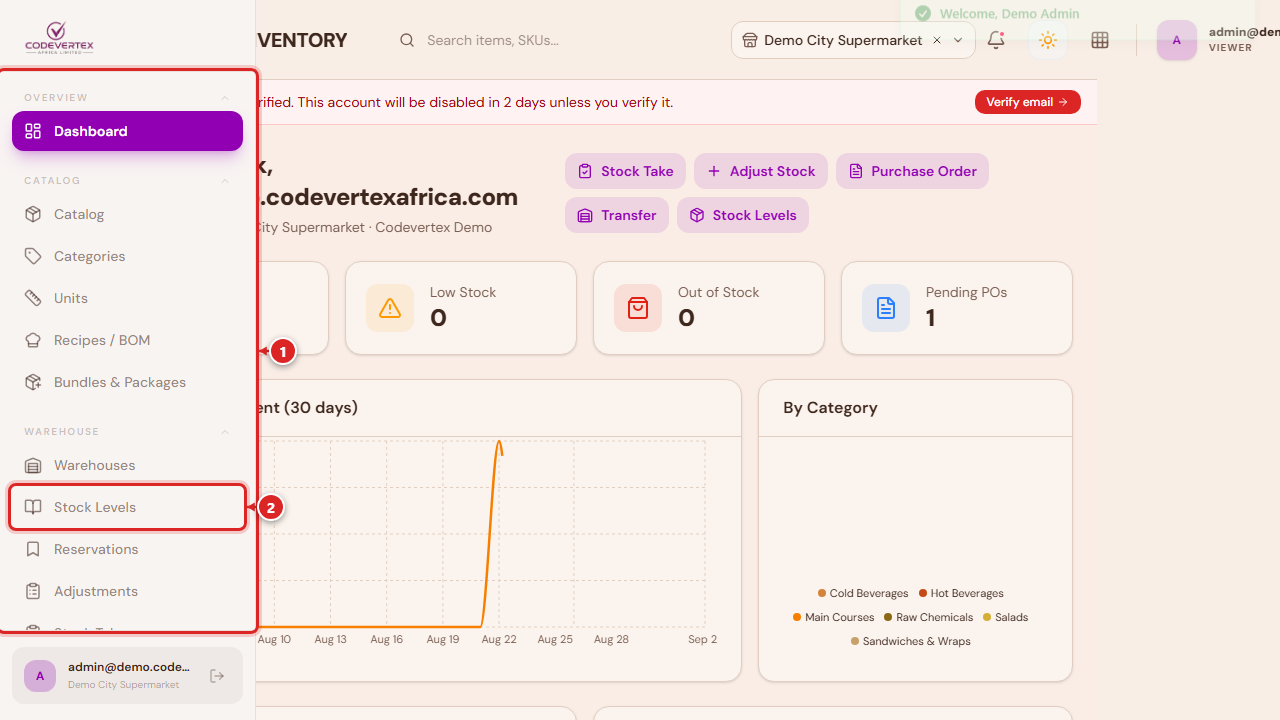
On a computer, the sidebar (①) is always visible on the left, and the dashboard's quick-action buttons (②) jump straight to the workflows you use most:
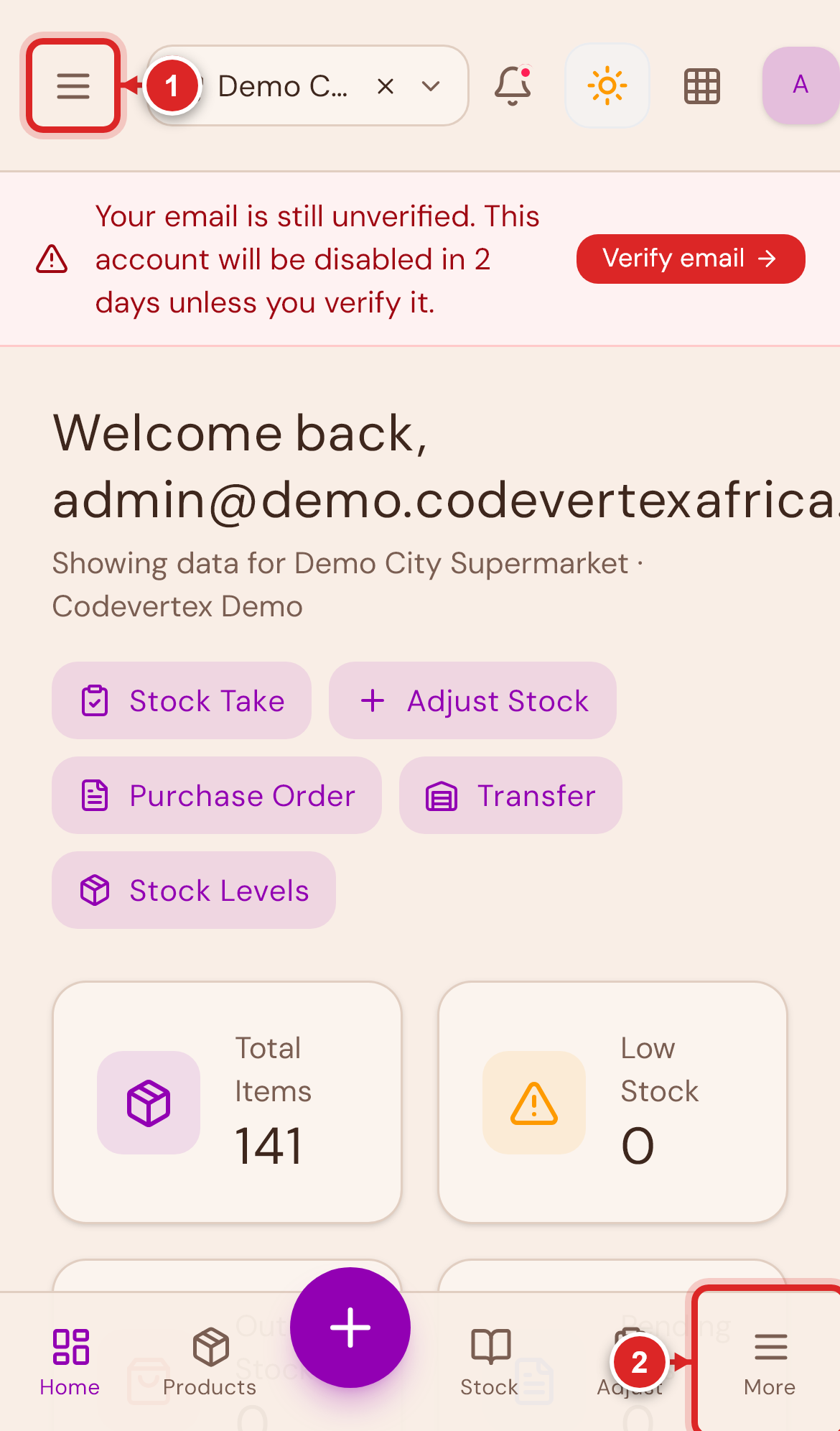
On a phone, the sidebar becomes a menu. Open it either from the hamburger icon (①) in the header, or the More tab (②) in the bottom navigation bar — both open the same menu:
Before you start
You'll need an account with access to Inventory and a PIN set up by your administrator (Team & Roles in the sidebar, under Management, is where an admin sets PINs for staff — see Inventory Administration). If you manage more than one outlet, you'll pick which one you're working in when you log in — a manager can switch outlets from the header, an admin can view all outlets at once.
Staff accounts, organisation-level roles, branches, and billing are managed separately in the centralized client portal — see Account & Organisation.
More guides coming
This section covers the modules people ask about most (Stock Take, for physical stock counts, is covered under Warehouses & Stock). Guides for the rest of Inventory — transfers between warehouses, lots and batch/expiry tracking, production batches, equipment and asset tracking, events and ticketing, and the built-in reports — are on the way. If you need help with one of these before its guide is published, reach out to your account contact.
Guides for the other Codevertex Africa products (POS, Treasury, and the rest) will be added here the same way as they're written.