Team, Shifts & Cash Management
This page covers the day-to-day management screens: who has access and to what, shift handovers, the cash drawer, and setting up discounts and promotions. Staff accounts, organisation-level roles, branches, and billing are managed separately in the centralized client portal — see Managing Your Organisation. This page's Team section (below) is the POS-specific piece: which POS permissions a role has, and setting an individual staff member's PIN.
Team
Direct link:
https://pos.codevertexafrica.com/{your-tenant-slug}/settings(Team tab)
Members
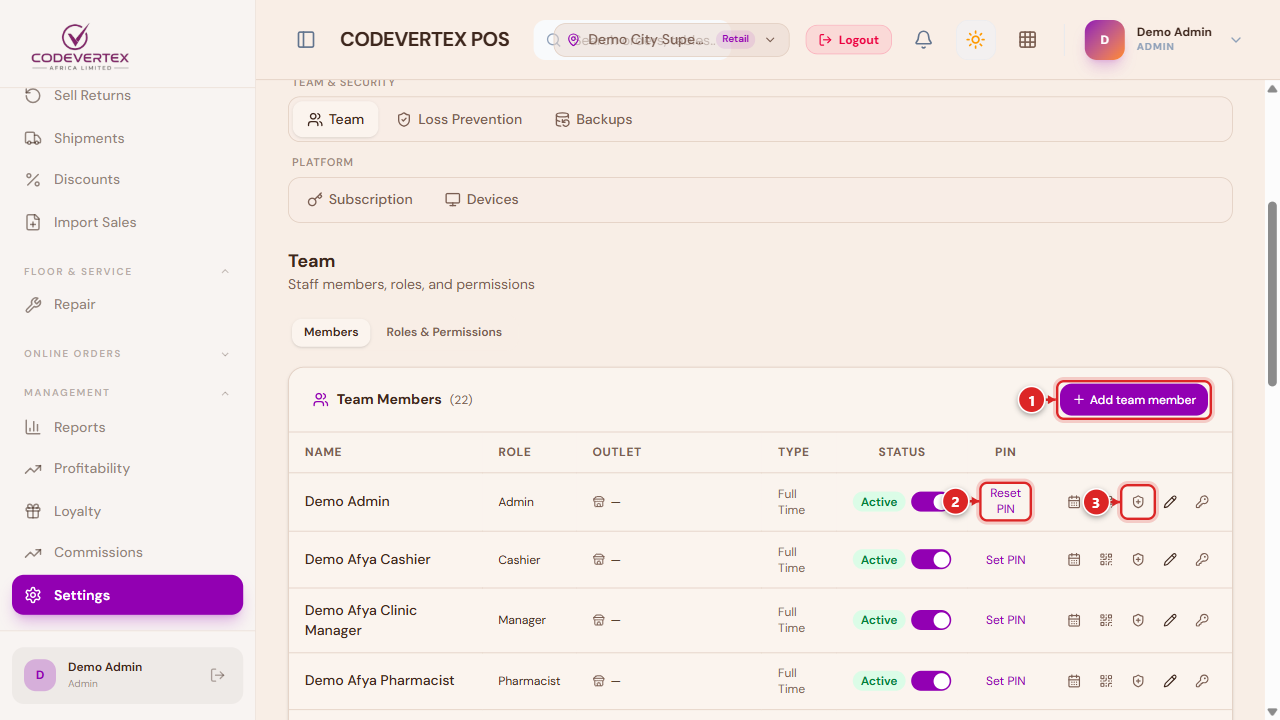
- Add team member — invite someone new to POS access for this organisation.
- Reset PIN (or Set PIN if they don't have one yet) — the PIN this person uses to log into a shared till or tablet throughout the rest of this guide.
- Extra roles — grants ONE additional role's permissions on top of someone's base role, without changing their main role — for example, giving a specific waiter the ability to also see and settle every bill in the outlet ("super waiter"), rather than only their own tables.
Roles & Permissions
Pick a role on the left, and its full permission matrix opens on the right — one row per module (Orders, Payments, Catalog, Discounts, Reports, and so on), each with add/view/change/manage-style toggles:
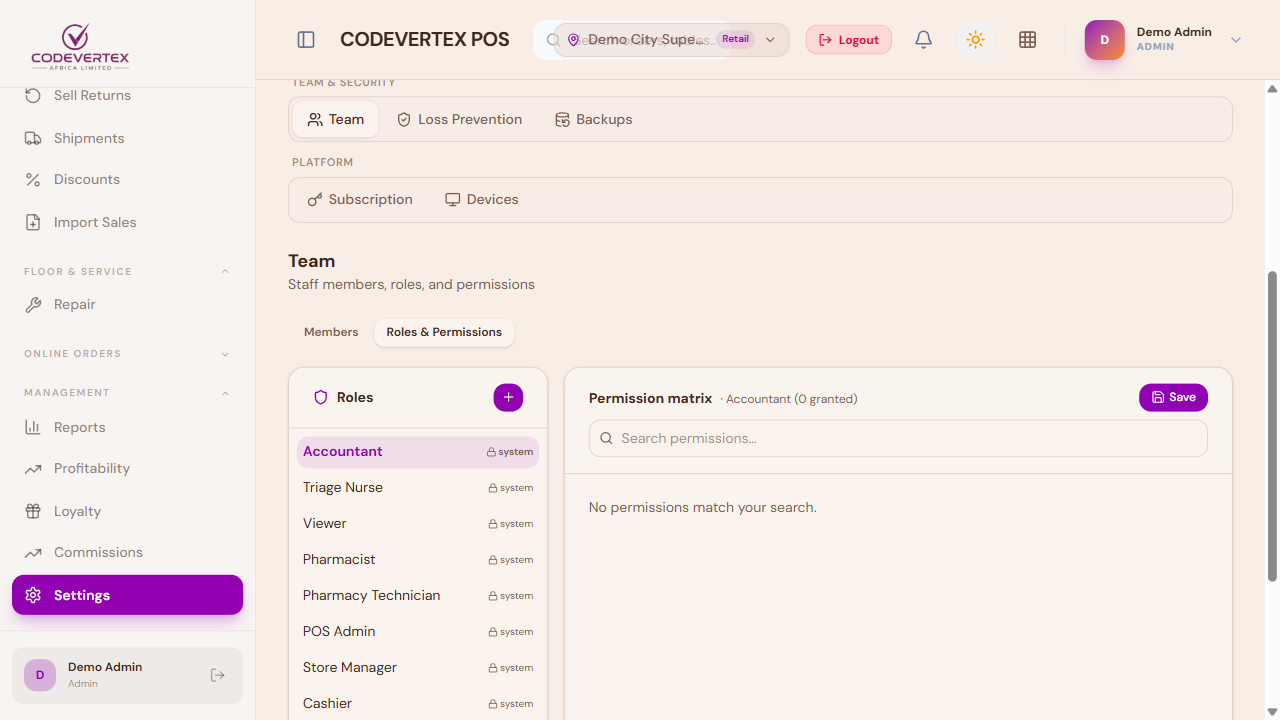
A role only sees and can act on what its permissions explicitly grant, module by module. Two patterns worth knowing:
- Self-approve permissions (named
..._self, e.g. voiding or overriding out-of-stock without a manager's sign-off) are separate, specific grants — not implied just by having a manager-level role. See Approvals & Manager Overrides. pos.discounts.addis what lets a non-manager role apply discounts at all. Without it, the discount controls simply don't appear at their till — this isn't a bug, it's the intended way to extend discount rights to a trusted cashier without making them a manager.
New custom roles can be created directly from this screen for a permission combination your organisation needs that doesn't match the built-in roles. A hospitality outlet's built-in roles (Waiter, Kitchen Staff, Bar Staff, Receptionist) are covered from the floor's perspective in Hospitality: Tables, Kitchen & Bills → Roles.
Shifts
Direct link:
https://pos.codevertexafrica.com/{your-tenant-slug}/shifts
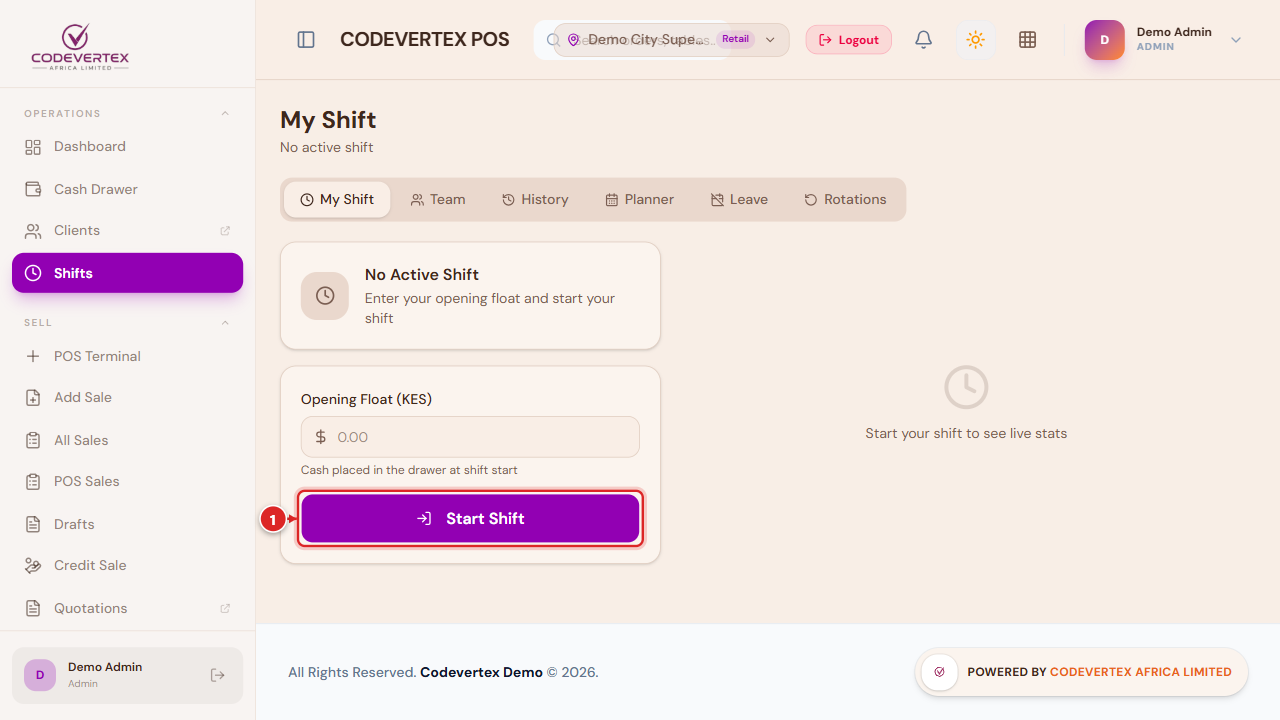
Start Shift records an Opening Float — the cash a cashier is handed to start the day — and End Shift closes it out. Ending a shift with cash to reconcile opens a blind cash-up: you count and submit what's actually in the drawer before you're shown the expected amount, so the count reflects what you found, not what you assumed.
Roles that don't handle cash (waiter, kitchen, bar) get a simplified Start/End with no float step at all.
Cash Drawer
Direct link:
https://pos.codevertexafrica.com/{your-tenant-slug}/drawer
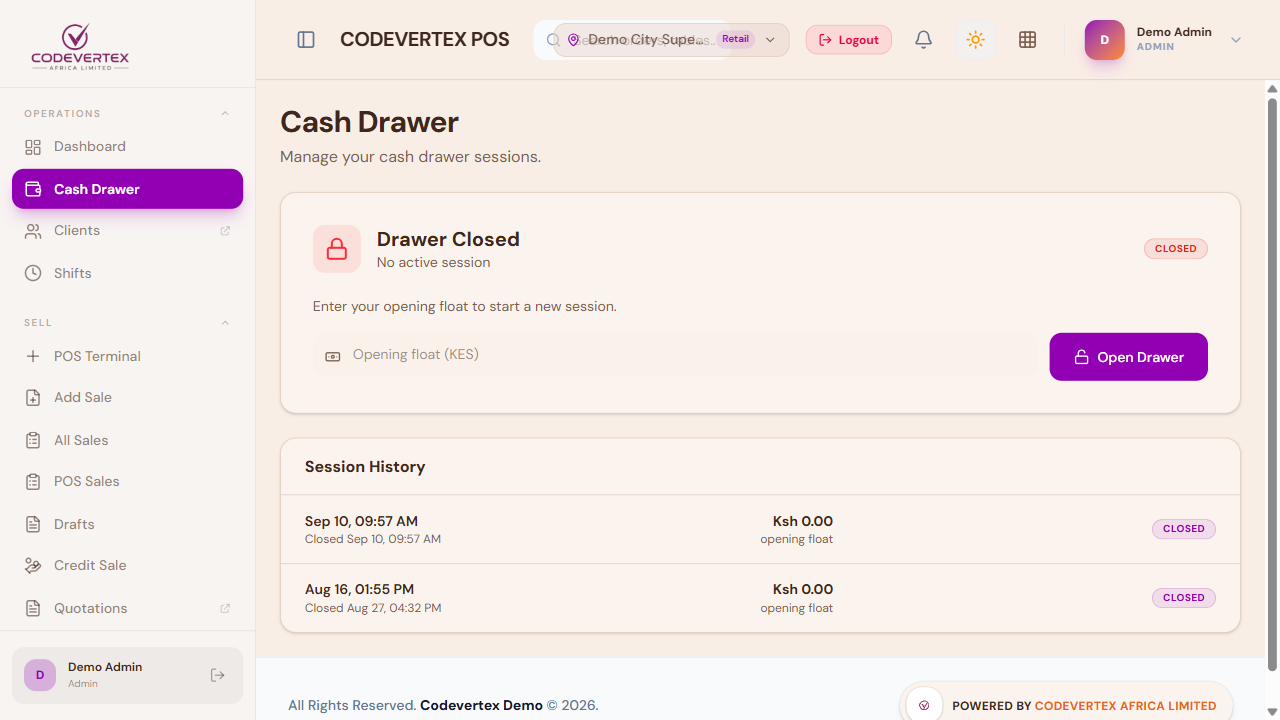
Shows whether the physical drawer is currently open or closed for this outlet, lets a cashier open it with a starting float or close it out, and keeps a running history of past sessions. This is the same drawer Register Details (on the terminal toolbar) reports against for the current shift — see Selling & Checkout.
Discounts and promotions
Direct link:
https://pos.codevertexafrica.com/{your-tenant-slug}/sell/discounts
New Discount defines a reusable discount or promotion your team can apply at checkout (the Defined tab in Add discount), rather than a one-off manual markdown:
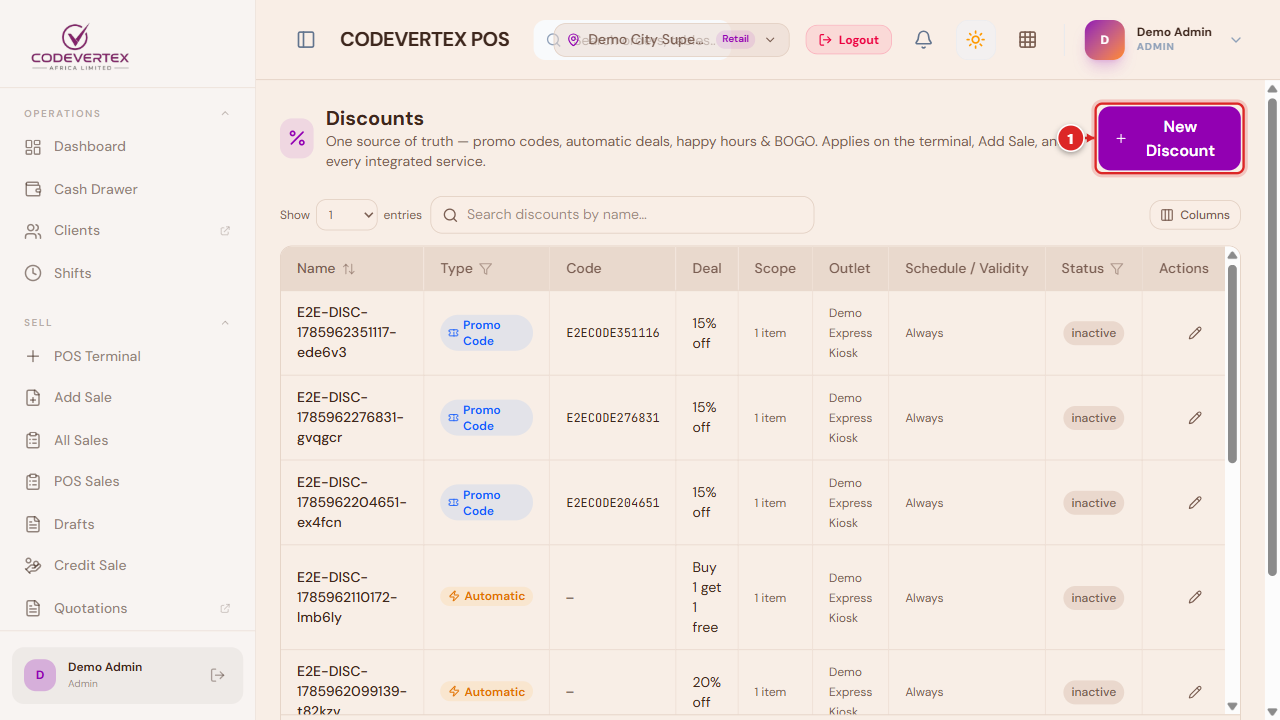
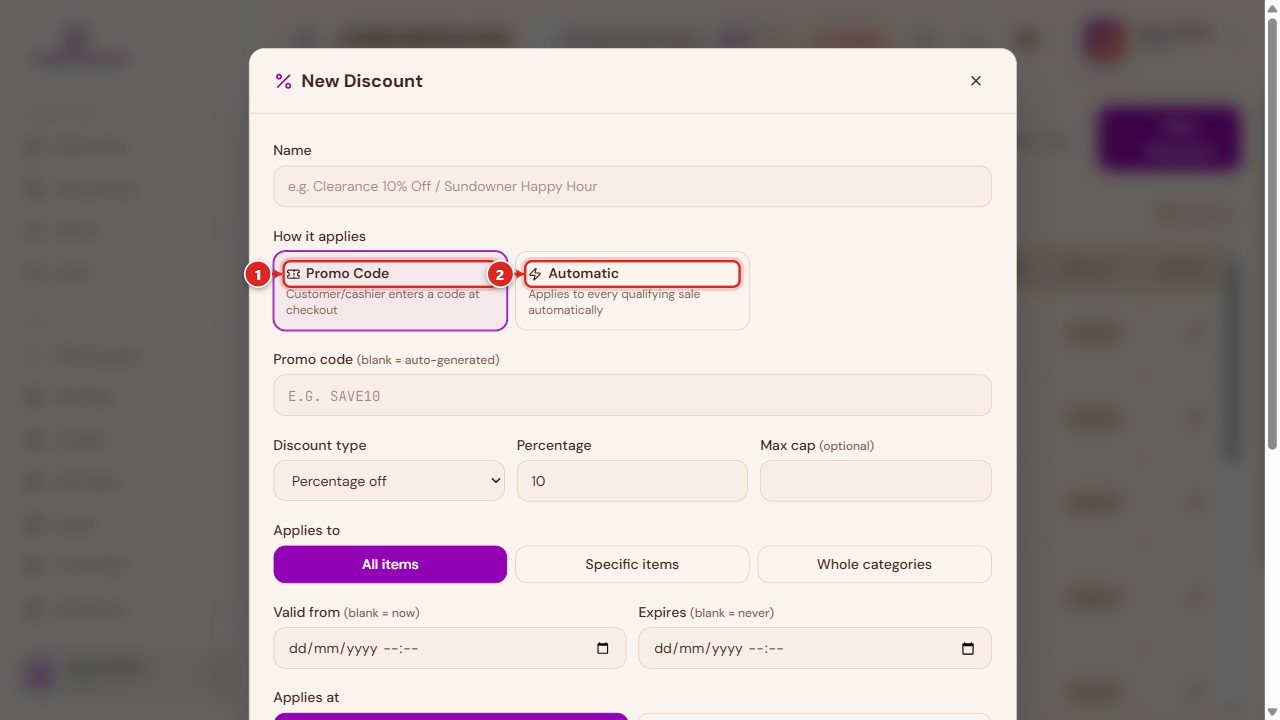
Three kinds:
- Promo Code — the customer or cashier types (or scans) a code at checkout.
- Automatic — applies itself to a qualifying sale with no code needed.
- Time Window — a happy-hour-style discount active only during configured hours (hospitality and quick-service outlets).
Each discount can be scoped to all outlets or just the one you're currently working in, and can target specific items or categories rather than the whole sale.
Common Issues
A staff member can log in, but their role's permissions don't seem to be applied. A role change doesn't always take effect on an already-open session immediately — have them log out and back in (or clear the app's cached data) after any role or permission change.
I don't see a way to permanently delete a team member, only deactivate them. That's expected — permanently removing an account everywhere on the platform is a platform-level action, not a regular admin capability here. Deactivating (rather than deleting) is the normal, reversible way to remove someone's access.
A promotion isn't applying automatically even though it should qualify. Check that its schedule (for a Time Window discount), outlet scope, and item/category targeting genuinely match this sale — an automatic discount only fires when every one of its own conditions is met.
A cashier can't see the discount button at all. They need the pos.discounts.add
permission — see Roles & Permissions above. Without it, a non-manager
role has no discount controls at the till by design, not by accident.