Warehouses & Stock
This page covers setting up where your stock physically lives, reading your current stock levels, and — the part most people land here for — fixing an item that shows the wrong amount of stock.
Warehouses
A warehouse is a physical place stock is held — a shop floor, a back store, a central depot. Every organisation has at least one, usually created for you when your account was set up.
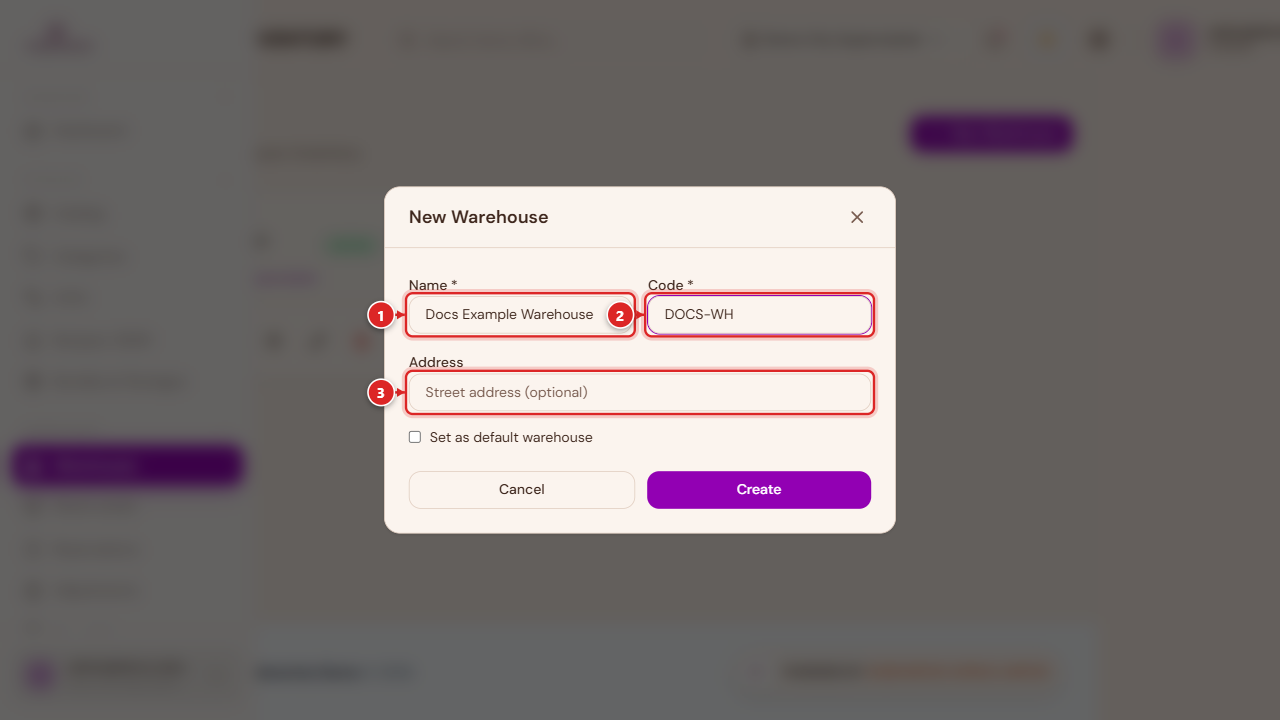
Go to Warehouses in the sidebar, then New Warehouse:
Direct link:
https://inventory.codevertexafrica.com/{your-tenant-slug}/warehouses(demo:https://inventory.codevertexafrica.com/codevertex-demo/warehouses)
- Name and Code — required. The code is a short identifier (e.g.
WH-MAIN). - Address — optional.
- Set as default warehouse — the warehouse new stock is added to when you don't specify one (including a new item's Initial Stock, see Adding Products). Only one warehouse should normally be marked default.
Locations (zones, aisles, shelves, bins)
Within a warehouse, you can optionally break storage down further into a hierarchy — a zone containing aisles, containing shelves, containing bins. Open Manage locations on any warehouse card to see and build this tree.
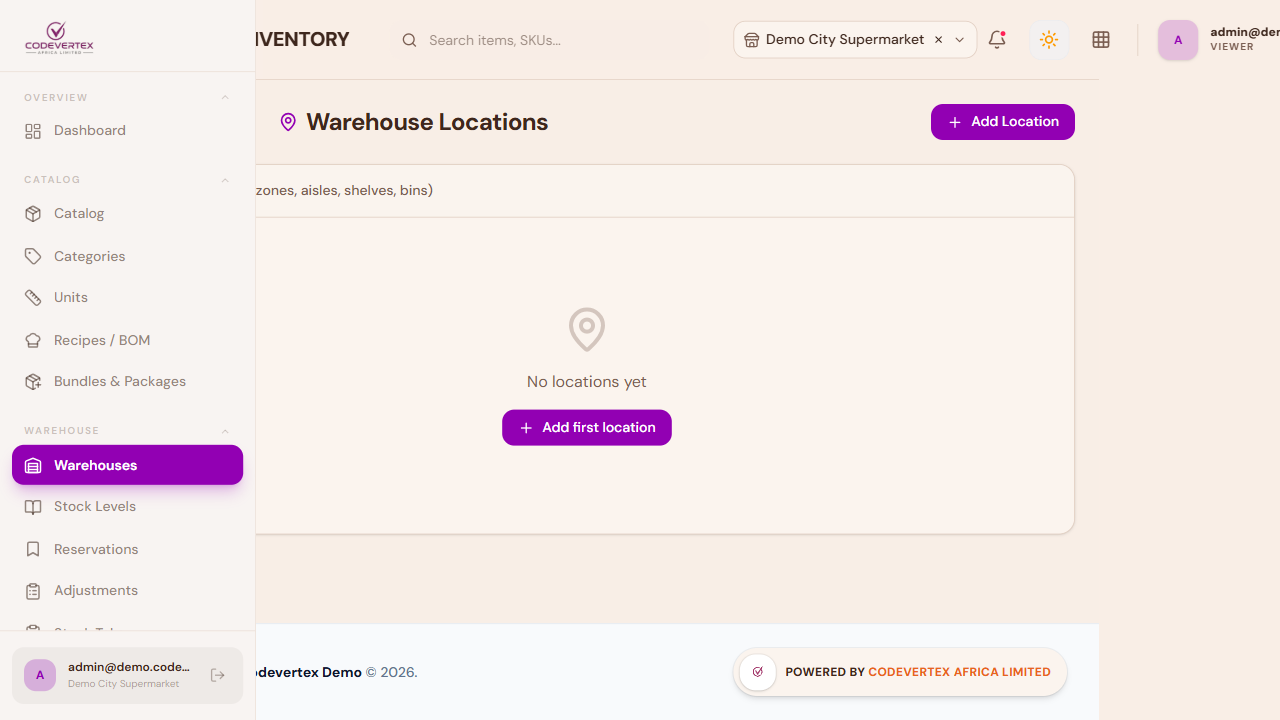
Add Location creates one level of the hierarchy at a time:
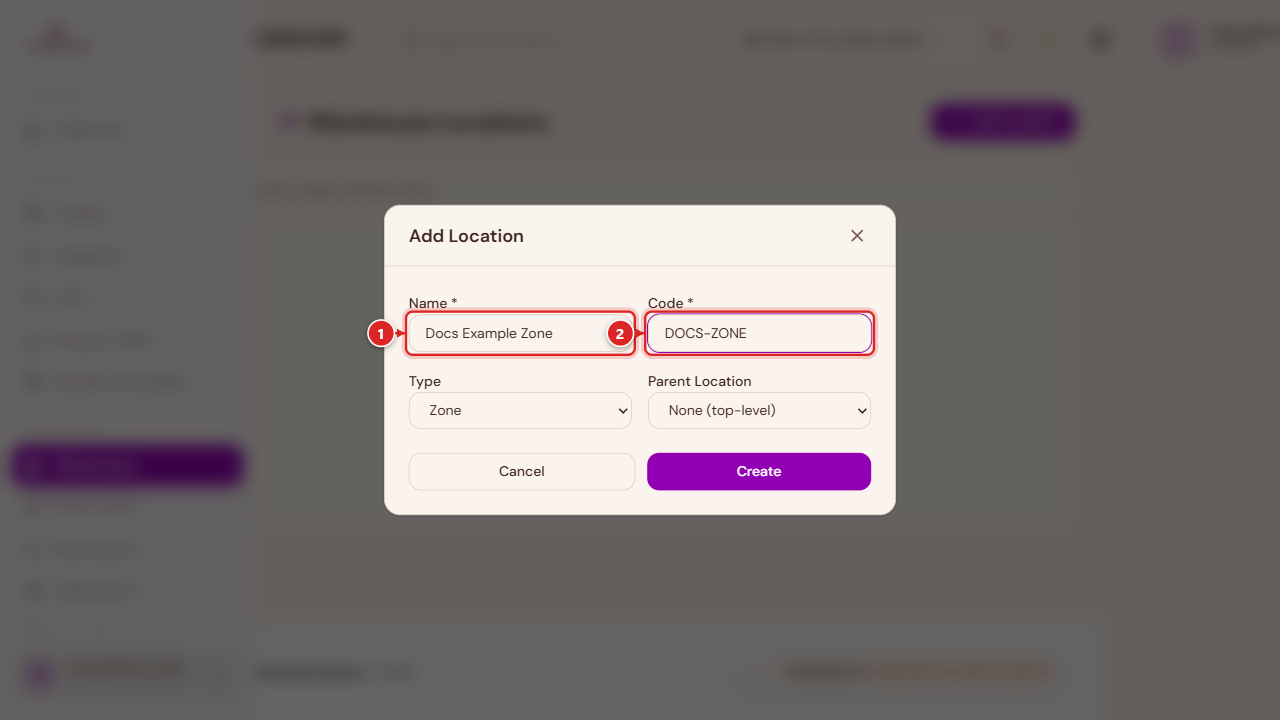
- Name and Code are required.
- Type is one of Zone, Aisle, Shelf, or Bin.
- Parent Location nests it under an existing location — a bin under a shelf, a shelf under an aisle, and so on. Leave it as "None" to create a top-level location.
Locations are optional. Plenty of businesses run fine tracking stock at the warehouse level alone.
Stock Levels
Stock in the sidebar shows real-time stock across every warehouse — what's low, what's out, and what's tracking normally.
Direct link:
https://inventory.codevertexafrica.com/{your-tenant-slug}/stock(demo:https://inventory.codevertexafrica.com/codevertex-demo/stock)
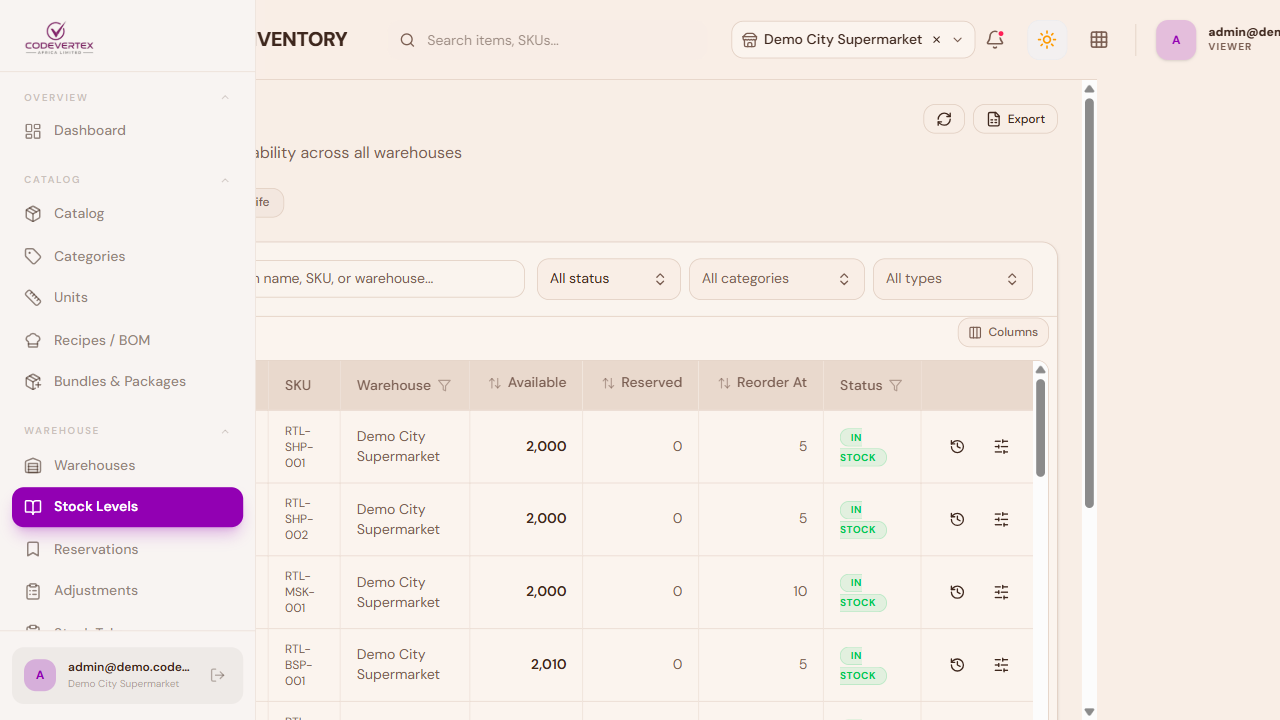
Two chips above the table, when relevant, jump straight to items out of stock or below their reorder point. Clicking any row opens a detail panel with the item's available/reserved/reorder numbers, and — if you have permission — quick "Adjust" and "Breakdown" actions right there, shortcuts to the same adjustment flow covered below.
End of Life
The End of Life tab next to Stock Levels lists items you have retired. They are hidden from the POS, the catalog and ordering, and are deleted for good after the retention window unless you restore them first. Use the search box at the top of the tab to find an item by name, SKU or barcode; the tab badge always shows the total number of retired items. Restore brings an item back into the catalog and the POS.
Stock Transfers
Transfers moves stock from one warehouse to another. A transfer starts as Pending (created, not yet shipped), becomes In Transit when it is shipped, and Completed when the receiving warehouse receives it.
Use the status filter beside the search box to narrow the list:
| Filter | Shows |
|---|---|
| Pending + In Transit | every transfer not yet received, so nothing is forgotten on the road |
| Pending | created but not shipped yet |
| In Transit | shipped and waiting to be received |
| Completed | received at the destination |
| Cancelled | cancelled transfers |
The filter works together with the search box and the date range, and paging covers every match.
Stock Adjustments
This is where you fix a stock number that's wrong — whether that's a brand new item that was saved without its Initial Stock, a damaged batch, a theft write-off, or a count that came up different after a physical stock take.
Go to Adjustments in the sidebar, then New Adjustment.
Direct link:
https://inventory.codevertexafrica.com/{your-tenant-slug}/adjustments(demo:https://inventory.codevertexafrica.com/codevertex-demo/adjustments)
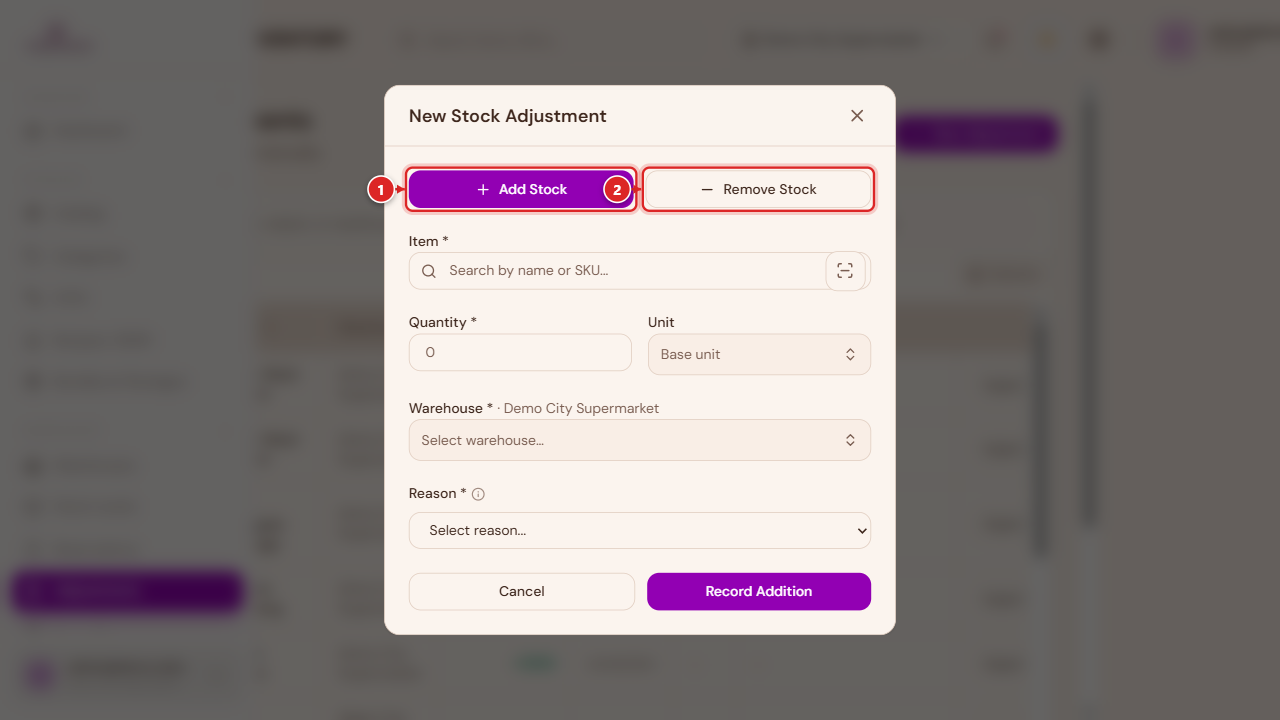
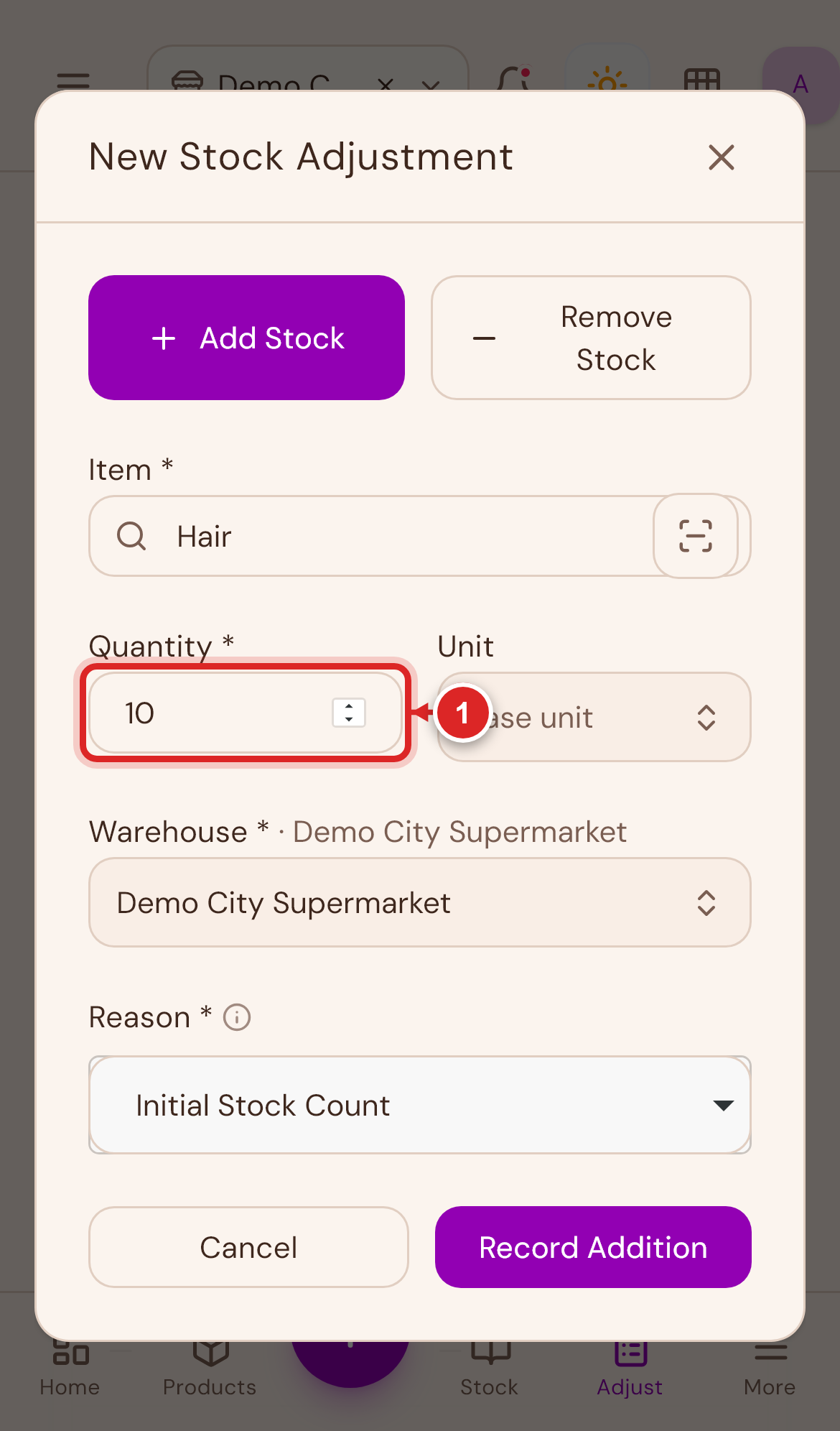
1. Choose Add Stock or Remove Stock. This decides the direction — the quantity you type next is always a positive number, and this toggle supplies the sign.
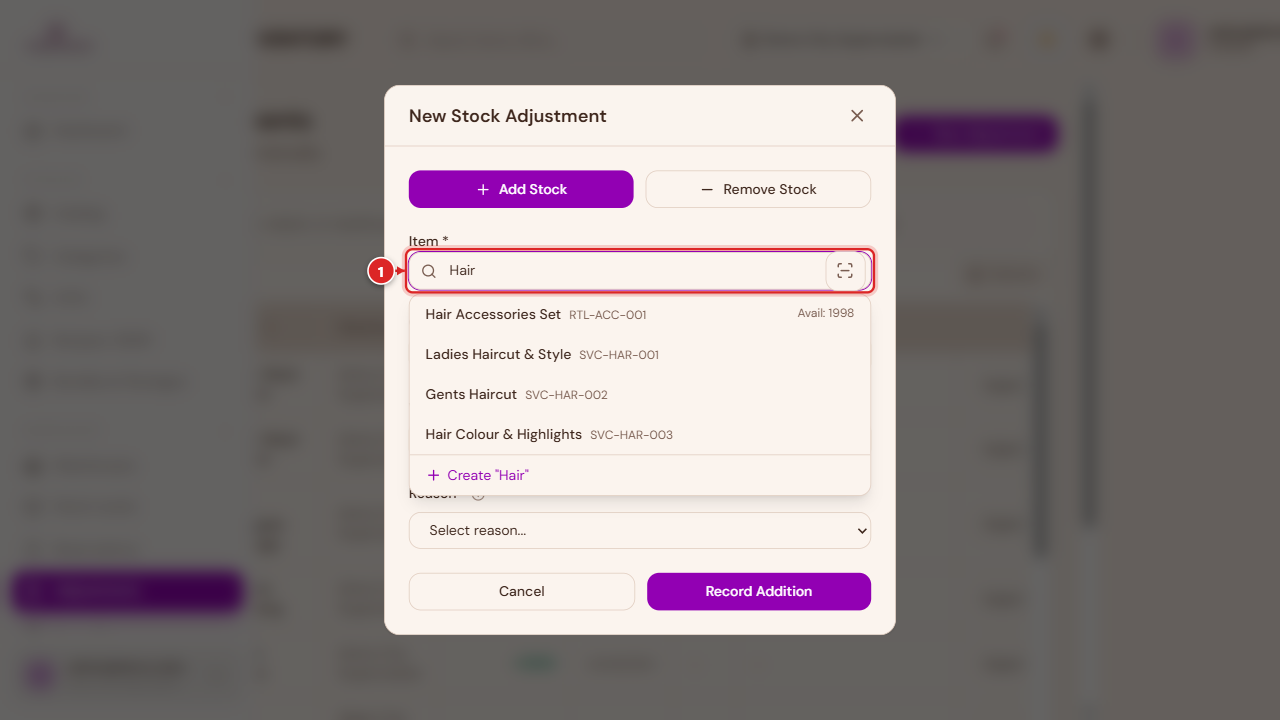
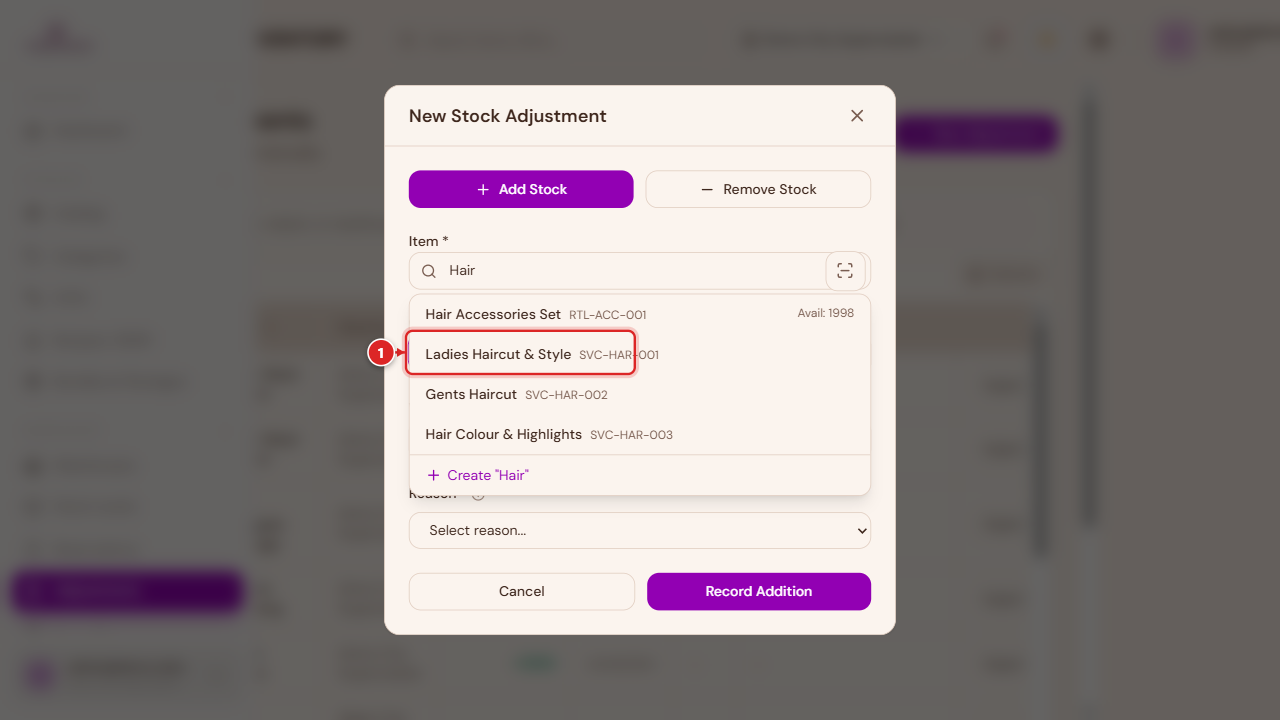
2. Search for the item by name or SKU and select it from the results.
3. Enter the Quantity — how much to add or remove (a delta), not the resulting total on hand. 4. Confirm the Warehouse this adjustment posts to. If you're currently viewing "All Outlets," you'll need to pick one explicitly before you can submit.
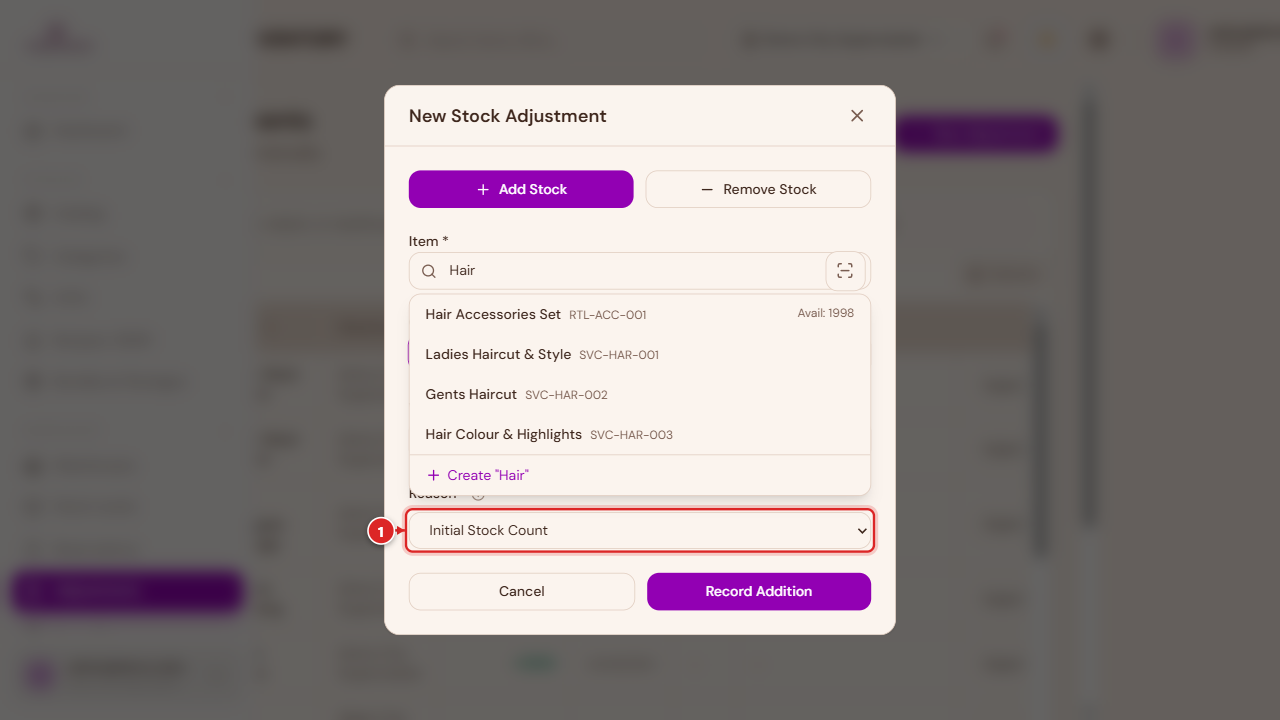
5. Pick a Reason. This is required, and it's worth choosing carefully — it's what shows up later in your stock history and reports:
| Reason | Use it for |
|---|---|
| Initial Stock Count | Loading opening stock for an item that was created without it — this is the fix for a new product showing zero stock |
| Count Correction | Reconciling after a physical stock take |
| Damaged Goods | Write-offs for damaged stock |
| Expired / Spoiled | Write-offs for expired stock |
| Theft / Unexplained Loss | Shrinkage |
| Internal Use / Issue to Floor | Stock consumed internally rather than sold |
| Found / Surplus Discovered | Stock found that wasn't on the books |
| Customer Return | Stock coming back from a customer |
| Other | Anything else — a Notes field becomes required so you can explain it |
Items that are faulty but worth repairing are not written off here. Send them to a technician or service centre from the Returns page instead, so you can follow them and receive them back (see Sending items for repair or service). Only the units that cannot be repaired end up as a damaged write-off.
6. Submit. The button reads "Record Addition" or "Record Removal" depending on the toggle from step 1. Large adjustments may be routed to a manager for approval first, depending on your organisation's settings — you'll see a message if that happens, and the adjustment posts once approved.
That's the whole recovery path for a zero-stock item: Adjustments → New Adjustment → Add Stock → search the item → enter the correct quantity → Warehouse → reason "Initial Stock Count" → Record Addition.
This is probably the single most useful screen to know on your phone — a stock problem usually gets noticed on the shop floor, not at a desk:
flowchart TD
    A[Stock Levels shows\nan item at zero] --> B[Adjustments → New Adjustment]
    B --> C[Add Stock]
    C --> D[Search and select the item]
    D --> E[Enter the correct quantity]
    E --> F[Confirm the warehouse]
    F --> G["Reason: Initial Stock Count"]
    G --> H[Record Addition]
    H --> I[Stock Levels now shows\nthe correct amount]
A Bulk Adjust option in the toolbar lets you do the same thing for several items at once — useful right after receiving a delivery of several new products at the same time.
Stock Take
Direct link:
https://inventory.codevertexafrica.com/{your-tenant-slug}/stock-take(demo:https://inventory.codevertexafrica.com/codevertex-demo/stock-take)
A Stock Adjustment fixes one item you already know is wrong. Stock Take is the other direction: a full or partial physical count, comparing what your team actually counts against what the system thinks you have, all at once — periodic full counts, cycle counts, or a department's daily shift sheet (kitchen, bar, stores).
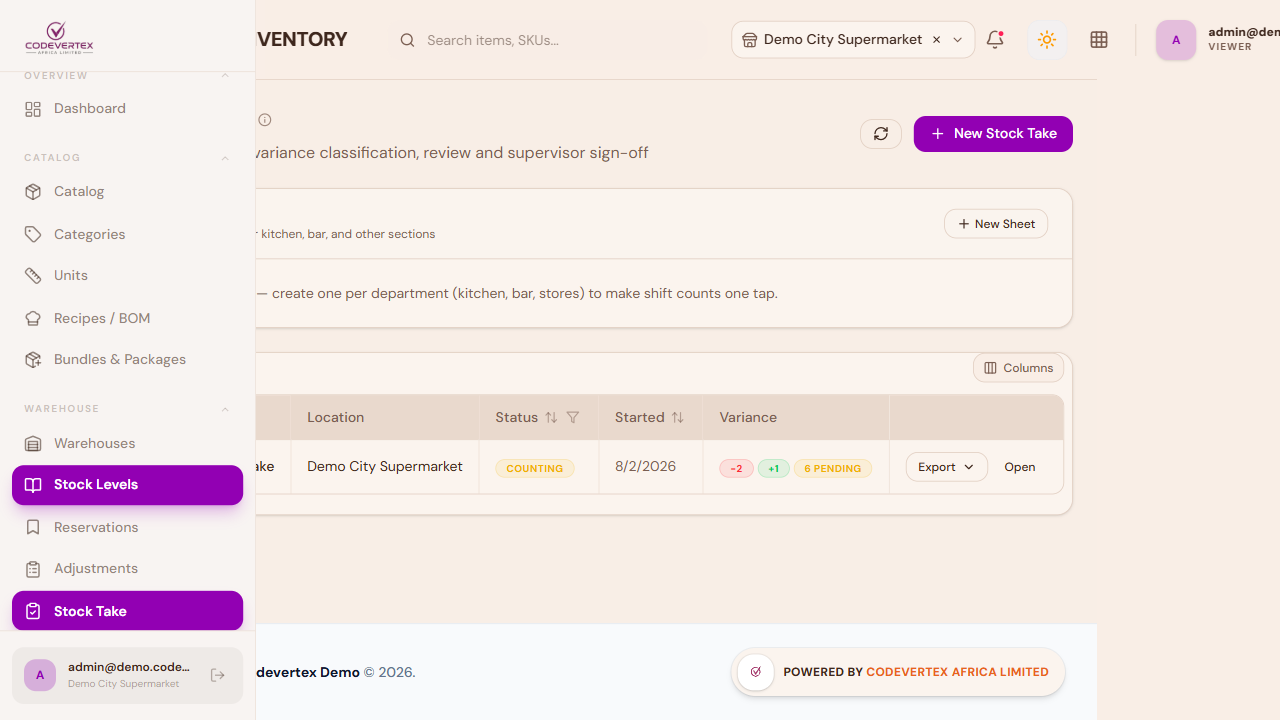
Each row is one counting session, with a Variance column summarising it at a glance — how many lines are short, over, or still pending — so a manager scanning the list can see which sessions need attention without opening each one.
New Stock Take:
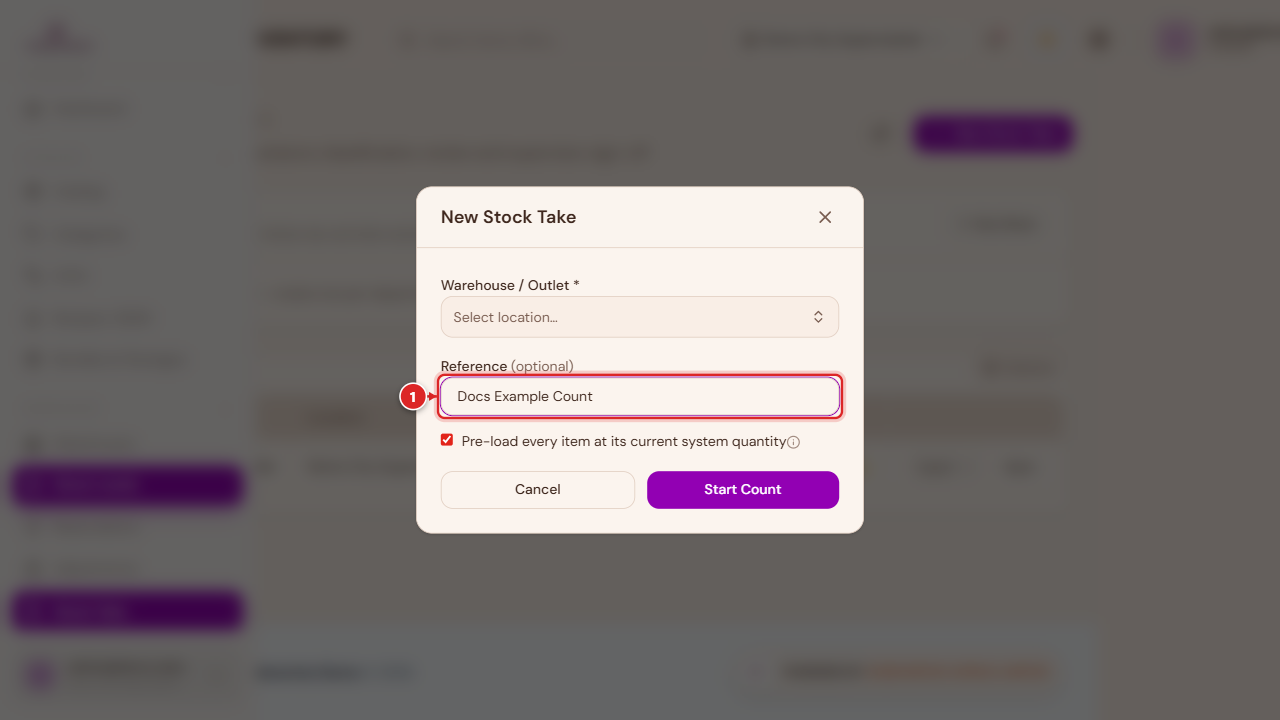
- Count sheet (optional) — pick a saved department sheet to pre-load only its items (e.g. the kitchen daily sheet), or leave it as Full count to include every stocked item.
- Warehouse / Outlet — required, unless a count sheet already has its own location.
- Reference (optional) — a name for this session, e.g. "July month-end count."
- Pre-load every item at its current system quantity — on by default. This fills the sheet with each item and what the system currently thinks you have; your team then types what they physically counted, and the difference becomes the variance. Turn it off to start from a blank sheet and add items as you go instead.
Counting works through three stages: Counting (your team enters quantities) → Submit for review → a manager or accountant Approves, which posts every variance as a stock adjustment with its classification, all at once.
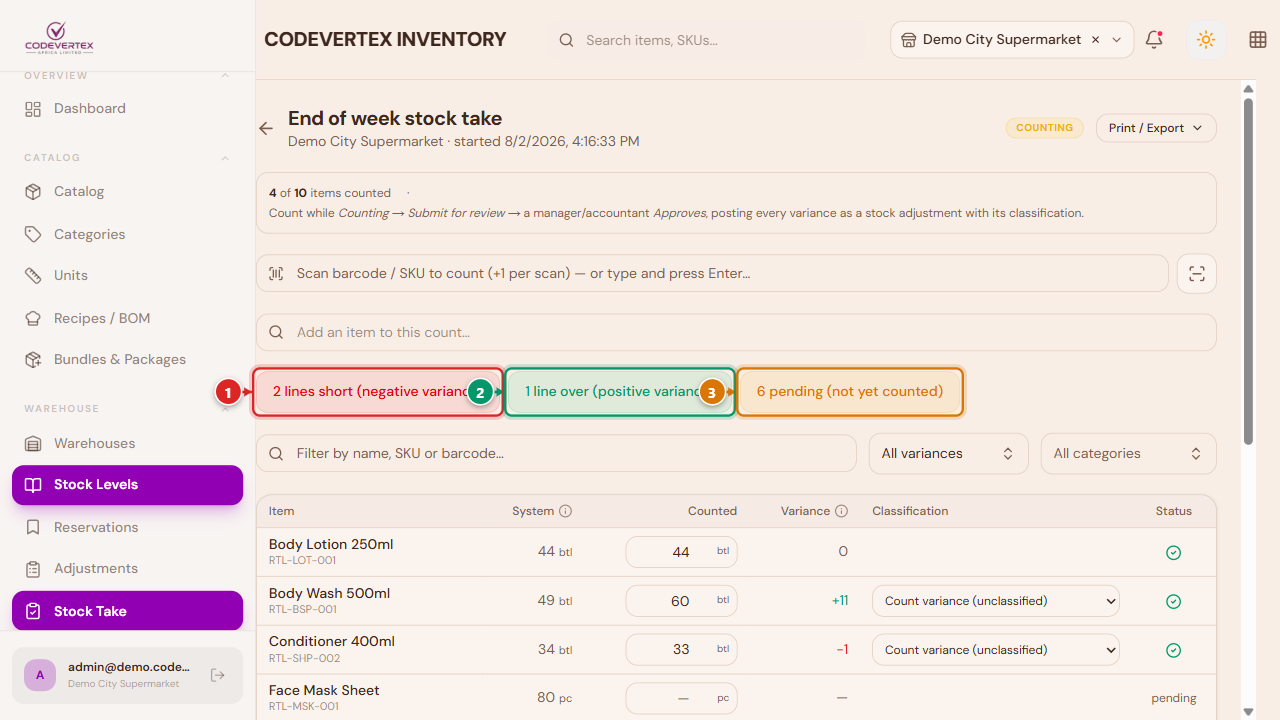
As lines get counted, colored pills appear above the list — ① lines short (negative variance), ② lines over (positive variance), ③ lines still pending — click one to filter the list to just those lines, click again to clear the filter. The same three states are also available from the filter row's dropdown, for narrowing by name/SKU/barcode at the same time. Each line shows Counted − System = Variance; a reason can be attached to each variance line before it's approved and posted.
Common Issues
Stock Levels shows a negative number for an item. This is correct, not a bug — it means the item was sold beyond what was actually on hand (an oversell), and the negative number is the real, unsettled shortfall. It shows up marked Out of Stock the same as a zero-stock item, and you'll see it in the "N items out of stock" count and the Out of Stock filter too. It resolves itself automatically: the next stock coming in — a Goods Receipt, a transfer, an adjustment — pays down the shortfall first, and the item only goes positive again once the debt is actually cleared. You don't need to do anything special to fix it; just keep restocking normally.
Submit is disabled, or the form asks you to pick a warehouse you didn't expect to need. If you're currently viewing "All Outlets" in the header (an admin-only view across every location), an adjustment can't post anywhere in particular — pick one specific outlet/warehouse before submitting.
An adjustment doesn't show up in Stock Levels right away. Large adjustments can be routed to a manager for approval first, depending on your organisation's settings (see Approvals in Inventory Administration) — it posts once approved, and you'll see a message at submit time if that's what happened.
Choosing "Other" as the reason won't let you submit. A Notes field becomes required for that reason specifically, so there's a record of what actually happened — fill it in and the button re-enables.
A warehouse card doesn't show a "Manage locations" option. Locations are optional — if a warehouse doesn't need zone/aisle/shelf breakdown, that's fine to leave alone, and the option still exists for when you're ready to use it.