Managing Your Organisation
My Organization is where an organisation admin manages everything shared across every Codevertex Africa product: company branding, physical branches, your team's access, billing, and support. Only admins see this page — everyone else manages their own account under Profile instead.
Direct link:
https://accounts.codevertexafrica.com/dashboard/my-tenant(the demo organisation: sign in asadmin@demo.codevertexafrica.com, then open the same link)
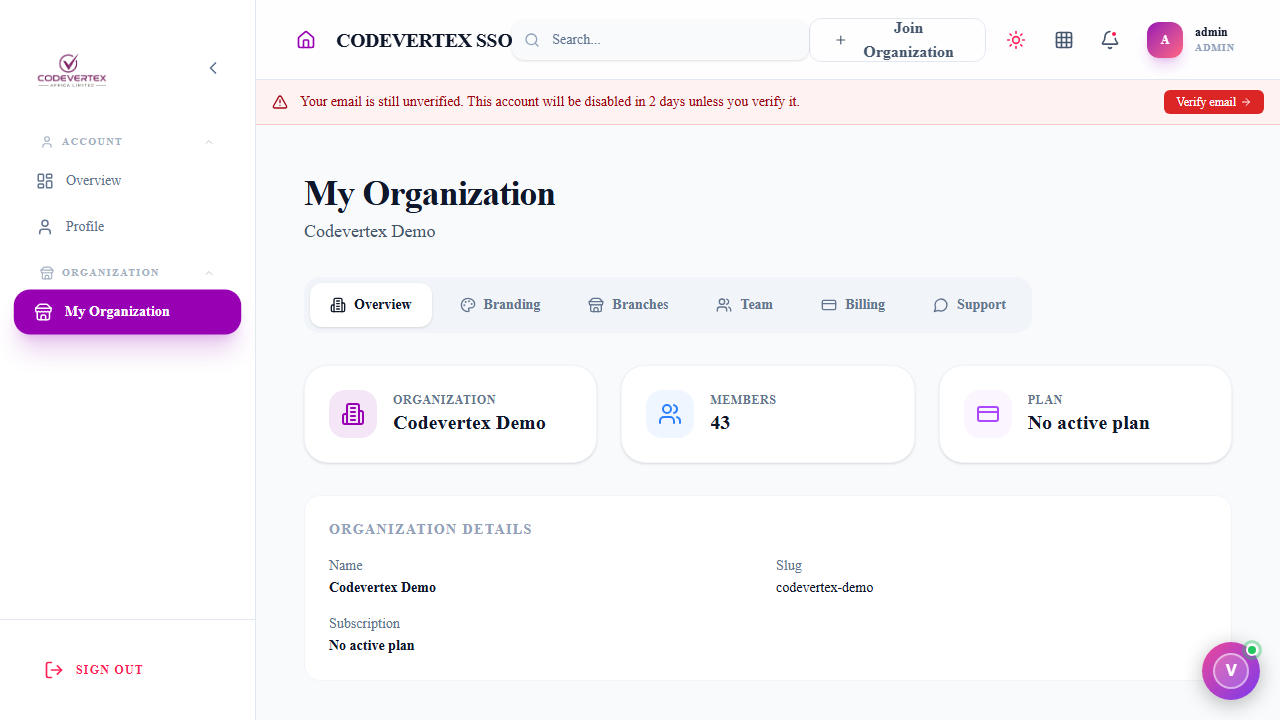
Six tabs sit across the top — click between them, nothing here needs a page reload. Overview
(shown above) is a quick snapshot: member count, active plan, and your organisation's name and
slug. That slug is the {your-tenant-slug} you'll see throughout every product's own guide — for
example codevertex-demo for this demo organisation, in a URL like
https://inventory.codevertexafrica.com/codevertex-demo/catalog.
Branding
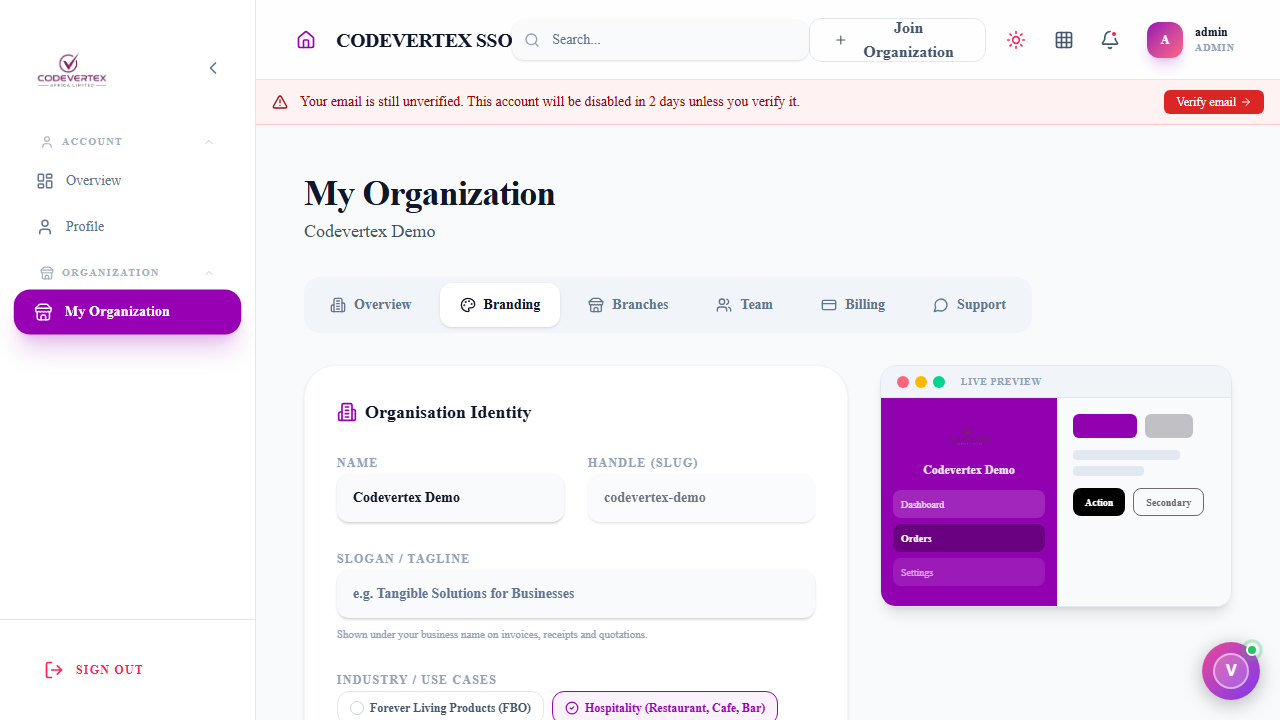
Your organisation's identity — logo, colours, contact details, and tax/compliance settings (KRA PIN, eTIMS registration) used across receipts, invoices, and documents. Set these up once here; every product reads from the same record.
Branches
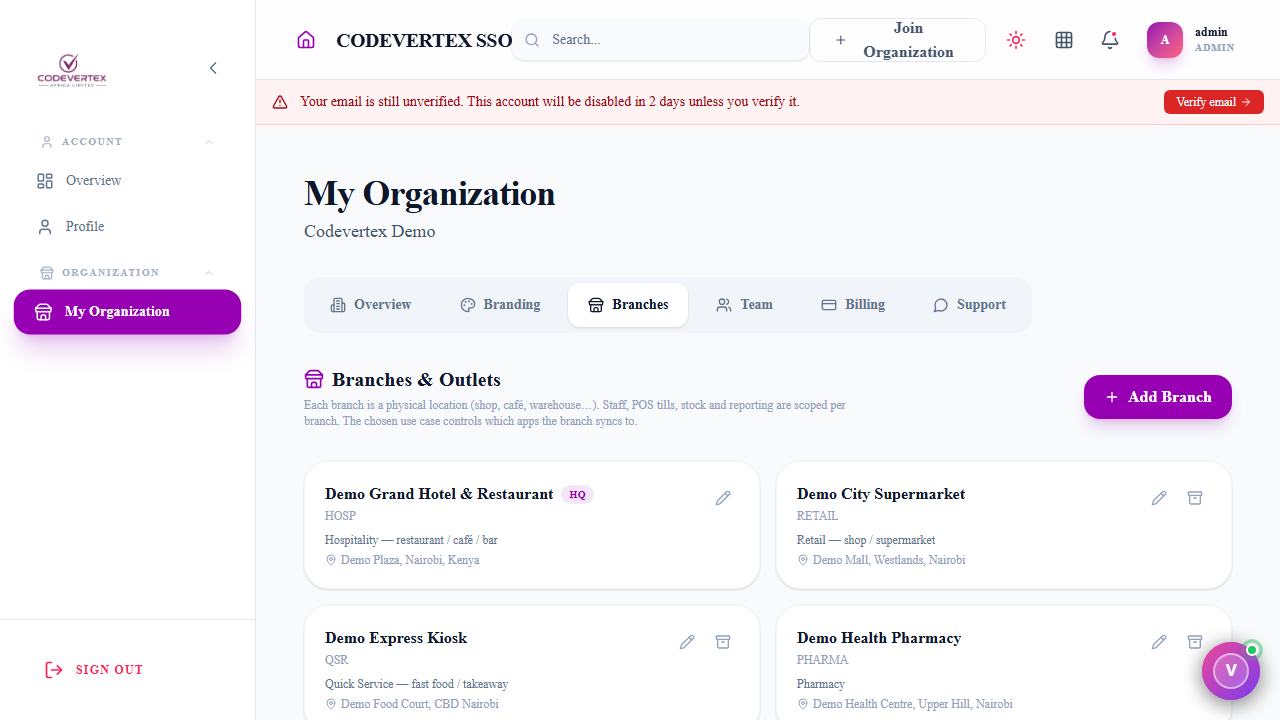
A branch is a physical location — a shop, a café, a warehouse. Staff, tills, stock, and reporting are all scoped per branch, and the use case you pick here decides which products that branch actually uses.
Add Branch:
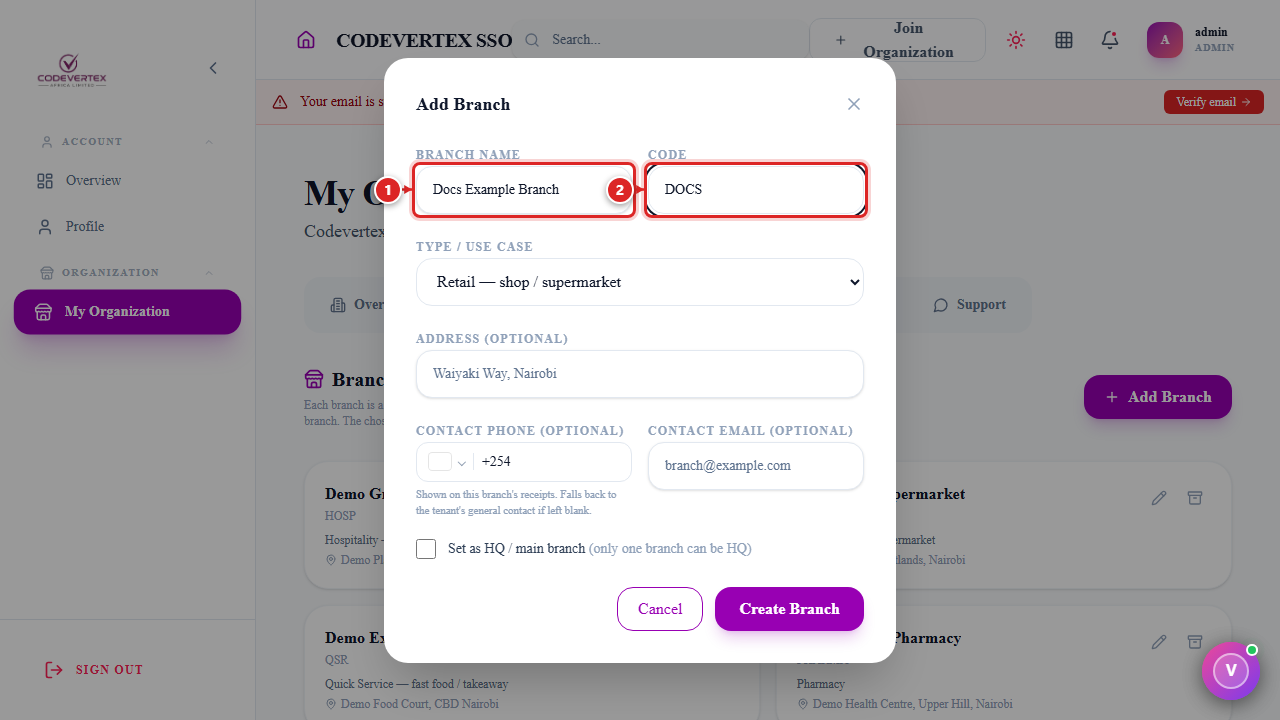
- Branch Name and Code — the code can't be changed once the branch is created.
- Type / Use Case — retail, hospitality, pharmacy, quick service, warehouse-only, and so on. This is what makes a branch show up in Inventory as a Goods-selling "Products" outlet versus a Drugs-only pharmacy outlet, for example — see Item types at a glance.
- Address, Contact Phone, Contact Email — all optional; contact details print on that branch's receipts and fall back to the organisation's general contact if left blank.
- Set as HQ / main branch — only one branch can be HQ.
A branch can be archived (not deleted) later — staff assigned there will need reassigning first.
Team
This is where staff accounts, roles, outlet access, and PINs are managed — the same PIN staff then use to log in to Inventory, POS, or Library on a shared terminal.
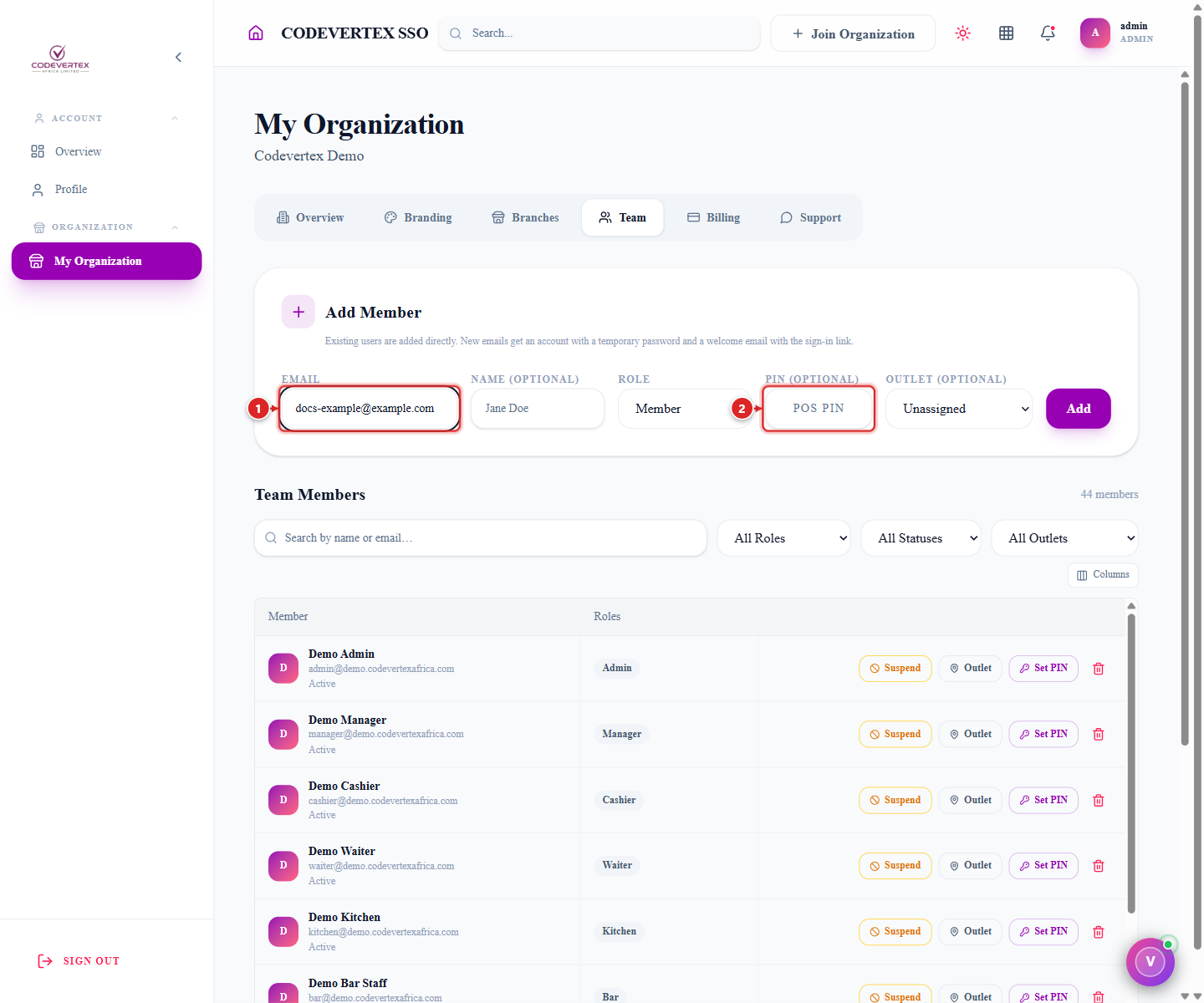
Add Member:
- Email — required. An existing account is added directly; a brand-new email gets an account created on the spot, with a temporary password emailed to them (shown to you once, so you can share it securely too — see below).
- Name — optional.
- Role — the access level:
admin,manager,staff,cashier,accountant, and so on — see the dropdown for the full list. Roles are shared across products; what a role can actually do varies by product. - PIN — optional, 4 digits. Set it here at invite time, or add/change it later from the member list (see below). This becomes their POS PIN by default.
- Outlet — optional. Ties the member to one branch.
- Add.
If the email didn't already have an account, you'll see a one-time "Account created" dialog with a temporary password — copy it and share it securely; it isn't shown again, and the new member must change it on first sign-in.
The Team Members list, below the Add Member form, is where you manage everyone already on the team — search by name or email, and filter by role, status, or outlet:
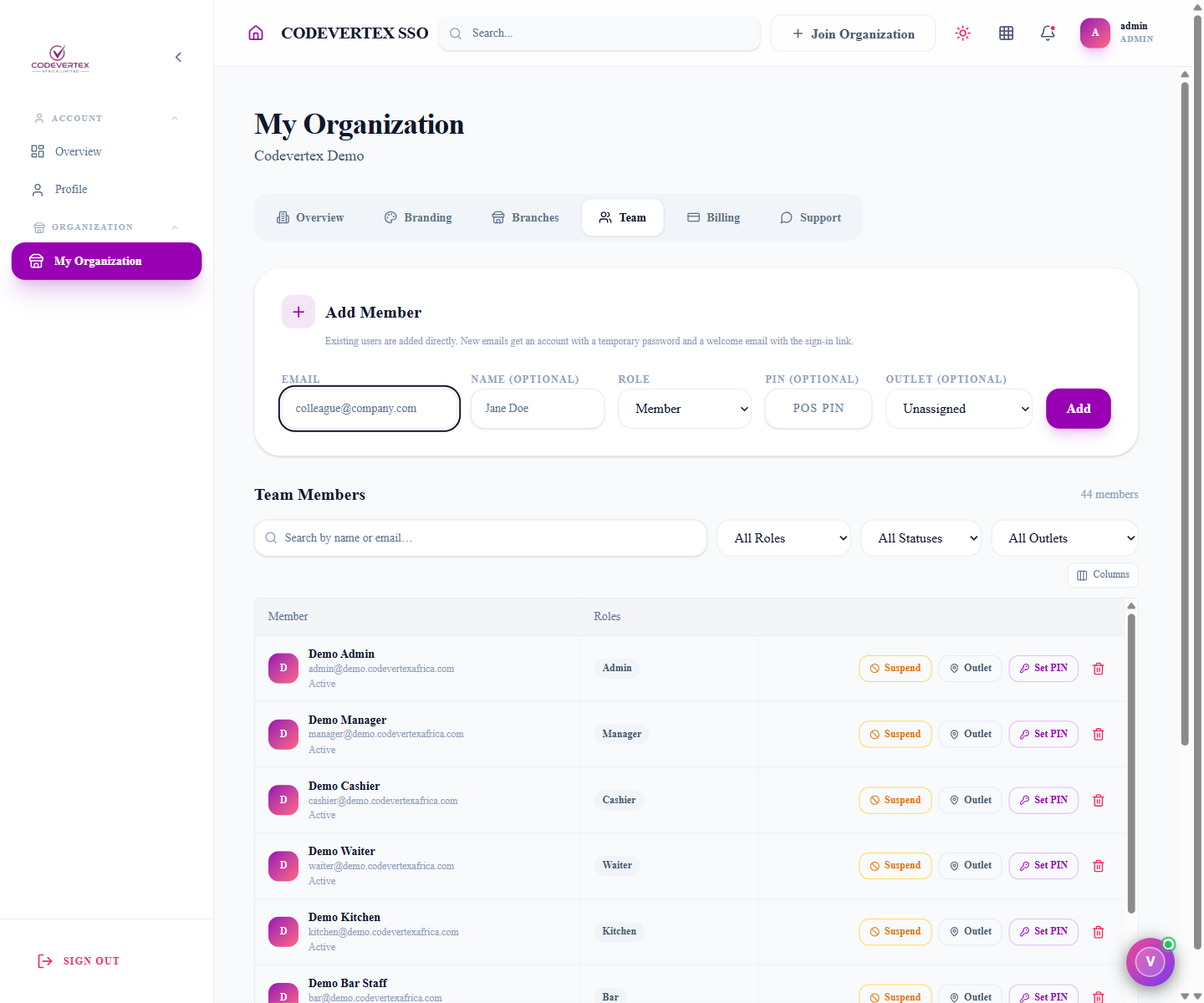
Each row has:
- Suspend / Activate — toggles whether the member can sign in at all.
- Outlet — reassign which branch this member is tied to (only shown if you have branches set up).
- Set PIN — opens the dialog below.
- Reset password (the lock icon) — opens the dialog described in Resetting a password below.
- A trash icon to remove the member entirely.
Resetting a password
Use this when someone forgot their password, or you're onboarding a member who needs a way in before their first sign-in.
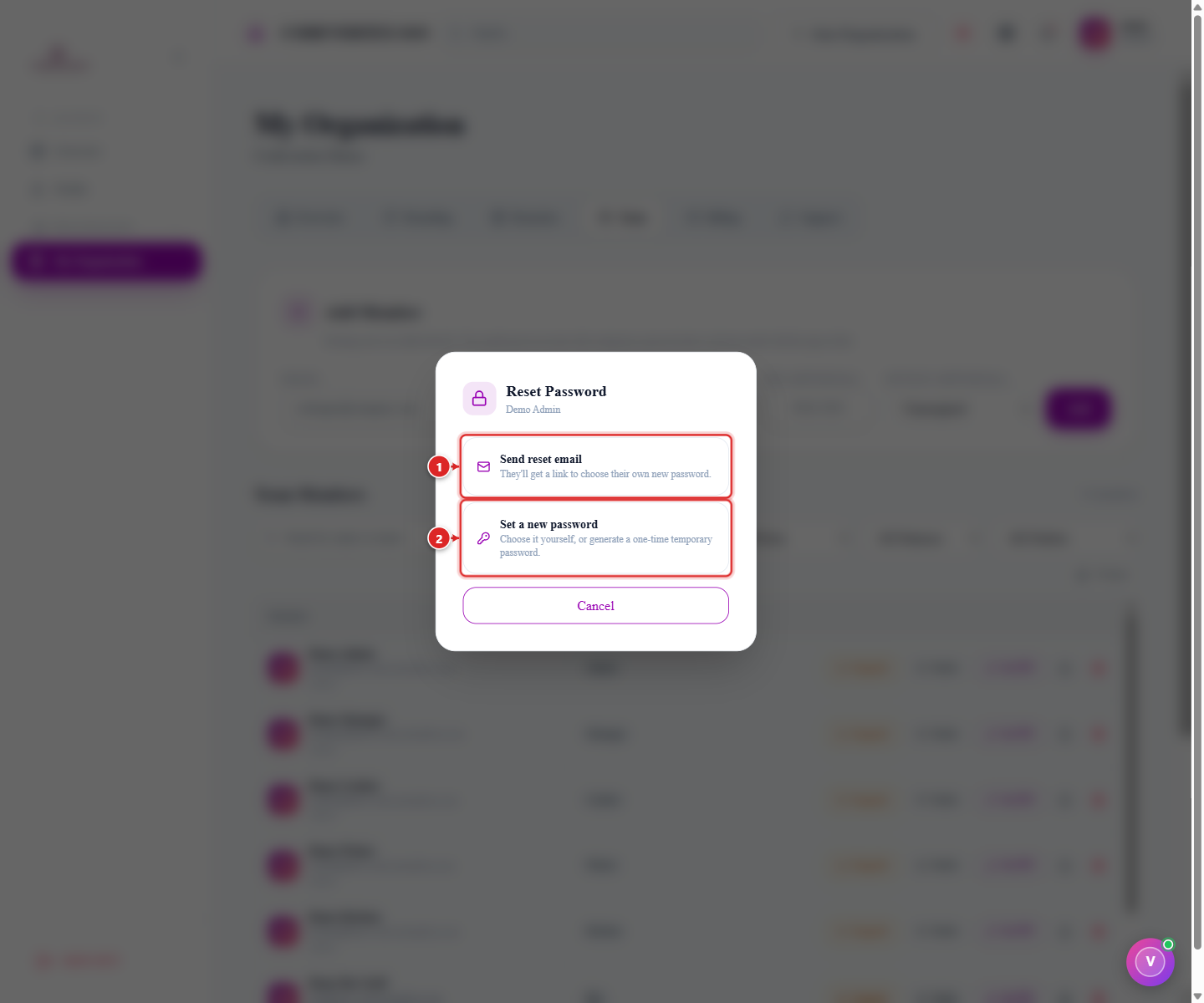
Click the lock icon on that member's row, then pick one:
- Send reset email — they get a link and choose their own new password. The simplest option when the member can check their own inbox.
- Set a new password — type one directly (at least 8 characters, confirmed twice), or:
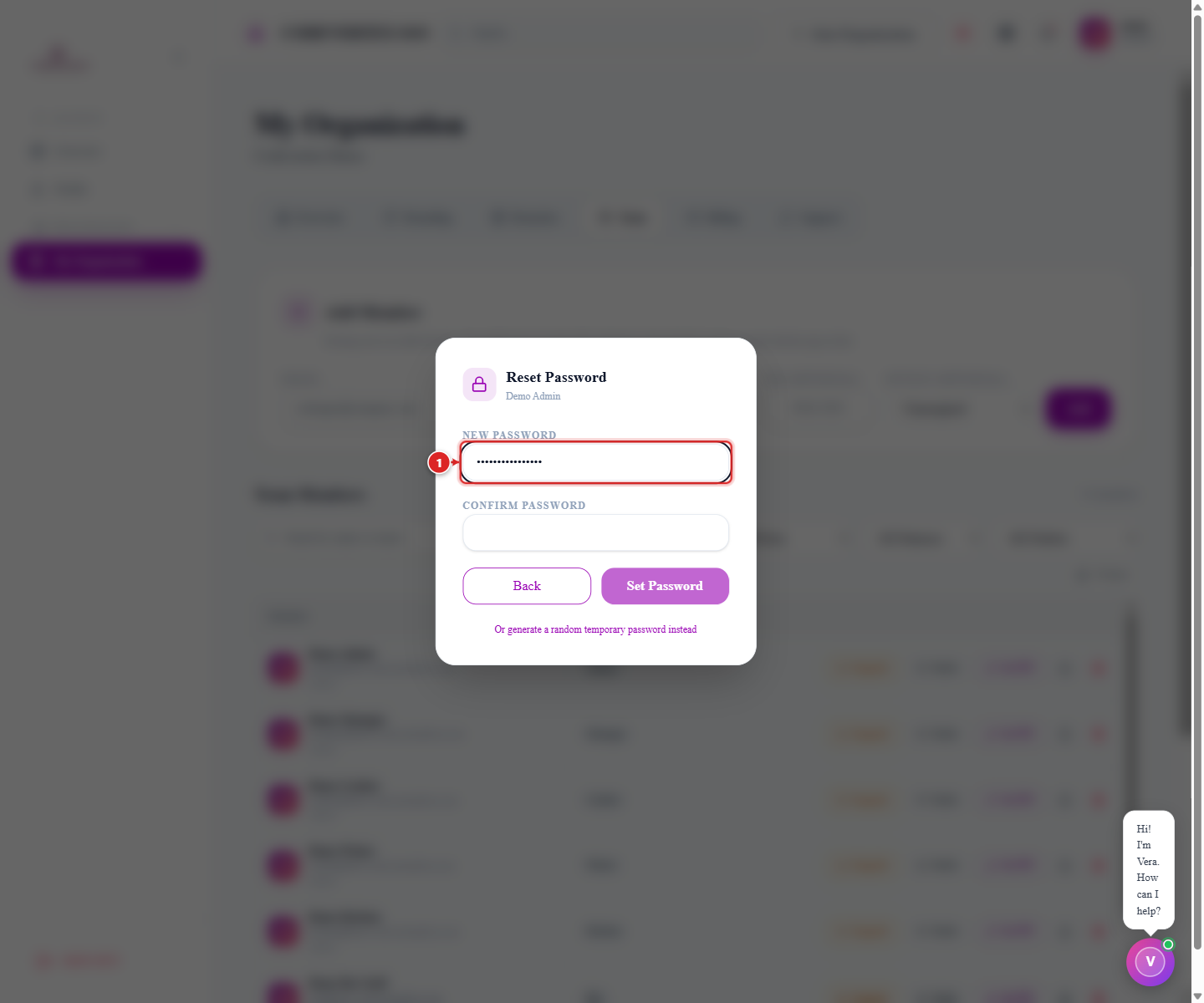
Below the form, "Or generate a random temporary password instead" creates one for you to hand over securely — useful when you're setting someone up in person and don't want to type a password yourself.
Setting or changing a PIN
This is the direct fix for "a new staff member doesn't have a PIN yet" or "I need to change someone's PIN" — the exact question that comes up when a new hire can't log in to the shop terminal.
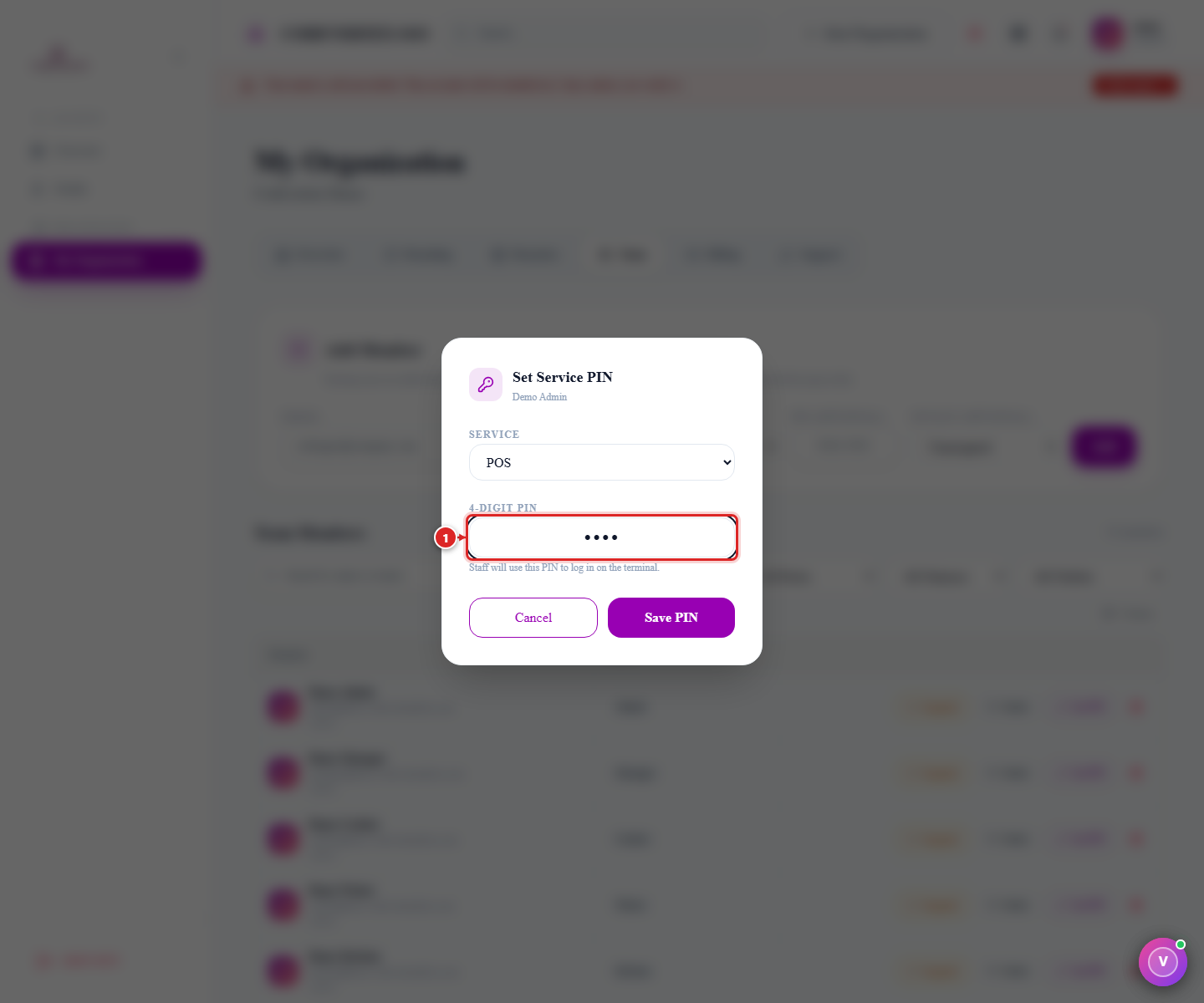
- Click Set PIN on that member's row.
- Service — which product this PIN is for: POS, Inventory, or Library. A staff member can have a different PIN per product, or the same one — your call.
- 4-Digit PIN — required, exactly 4 digits.
- Save PIN.
That PIN is what staff type into the numeric keypad on the product's own PIN login screen — see Inventory's login flow for what that looks like from the staff side.
Billing
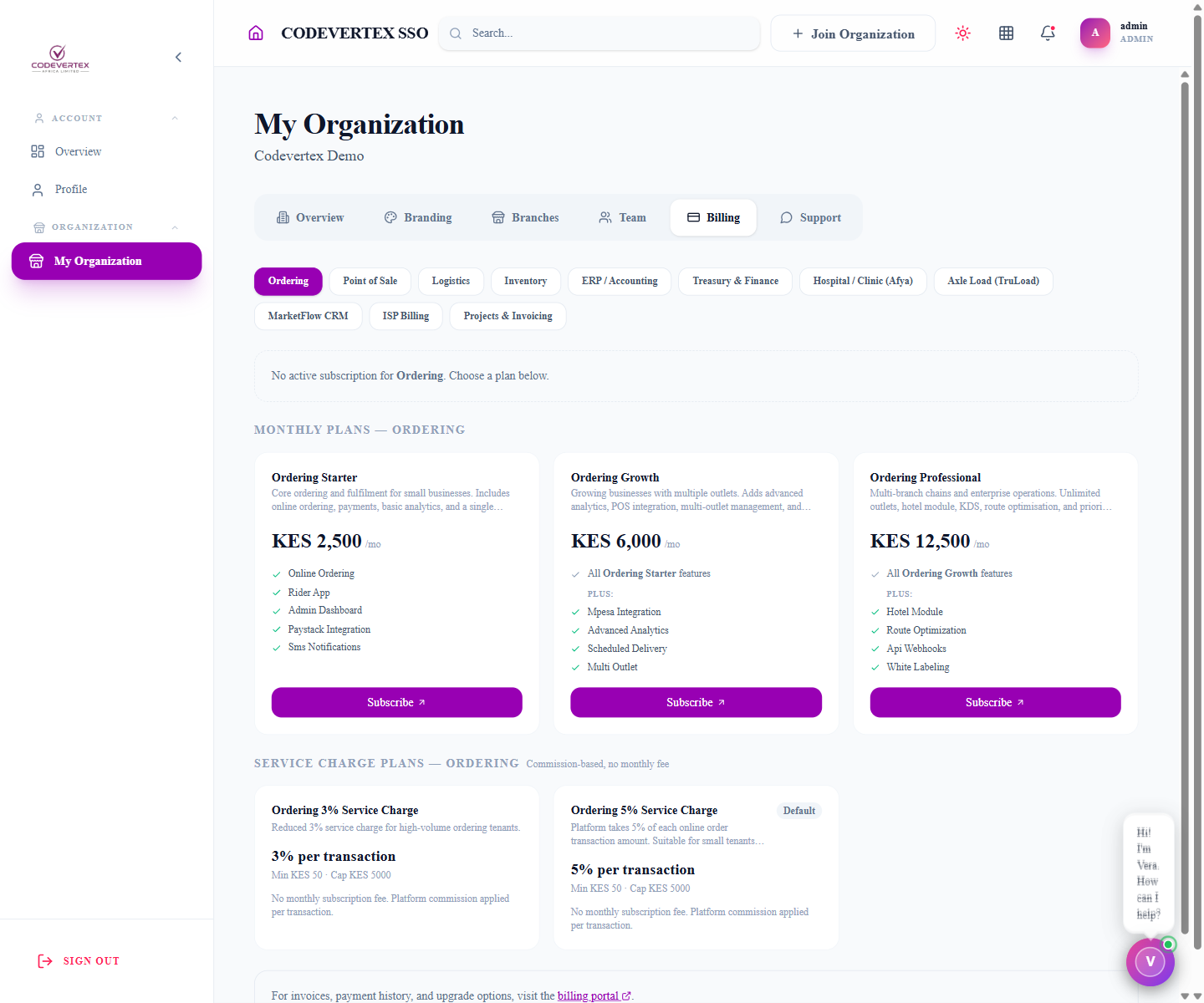
One tab per product your organisation could subscribe to — Point of Sale, Inventory, Treasury,
ERP, Ordering, Logistics, Afya, TruLoad, MarketFlow CRM, ISP Billing, and Projects. Each shows the
active plan and its renewal date, or lets you pick one if there isn't one yet. Manage opens the
full plans/billing experience at subscriptions.codevertexafrica.com for that product. See
Subscriptions & Billing for how plans and trials work generally.
Support
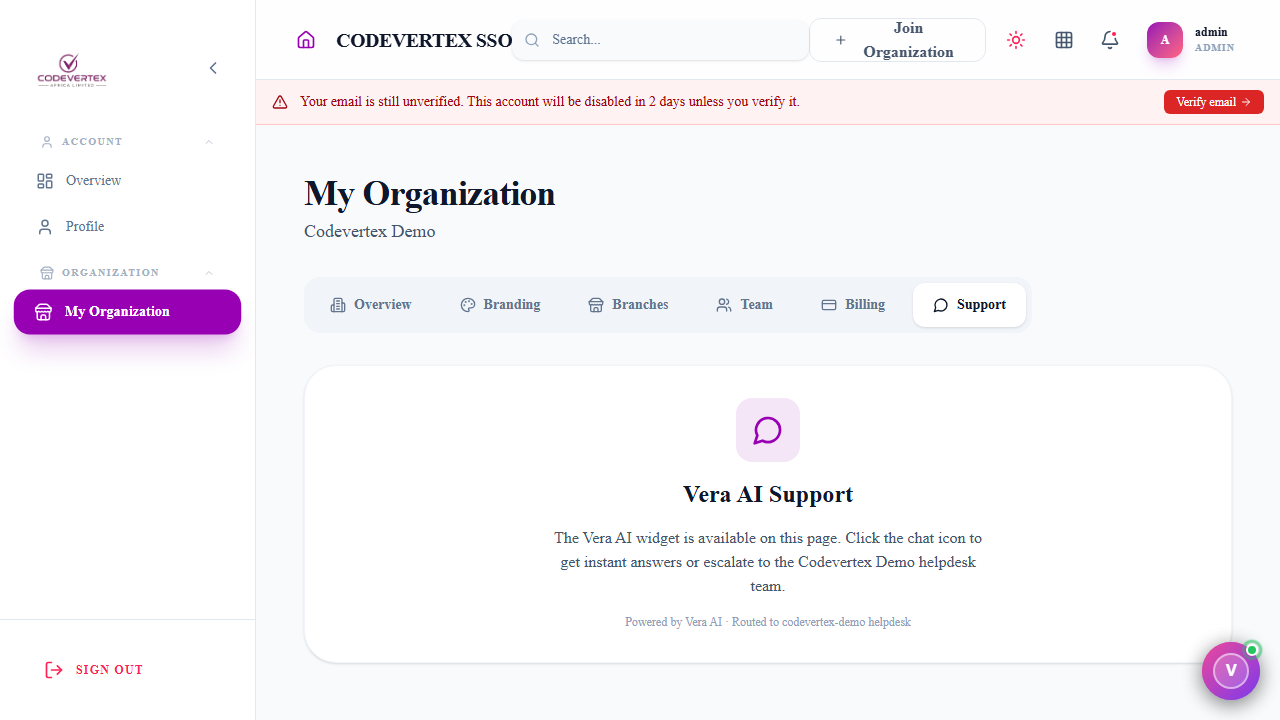
Click the chat icon (bottom-right corner, on any page) to reach Vera, the platform's AI assistant — it answers most questions instantly and can escalate to your organisation's helpdesk team when it can't. This tab doesn't have its own ticket form; the chat widget is the way in.
Common Issues
Only some tabs are visible, or the page 403s. Only organisation admins see My Organization at all — everyone else manages their own account under Profile instead. If you should have admin access and don't, another admin needs to change your role under Team.
A new member's temporary password wasn't written down in time. It's shown exactly once, in the "Account created" dialog, and isn't recoverable afterward — use Set PIN or your product's "Forgot password?" flow to issue a fresh credential instead of hunting for the original.
Removed a branch/outlet and now can't find staff who were assigned to it. Reassign affected staff to another outlet under Team before archiving a branch — a branch is archived, not deleted, but members tied to it will need reassigning to keep working normally.
A staff member's PIN works on POS but not on Inventory (or vice versa). PINs are set per product on purpose (Service dropdown in Set PIN) — a staff member can have different PINs on different products, or the same one, but they don't automatically carry over. Set the PIN again for whichever product it's missing on.
The Billing tab shows "No active plan" for a product you're sure you're paying for. Billing is
managed per product at subscriptions.codevertexafrica.com, reached via that tab's Manage
button — a plan purchased there can take a short moment to reflect back here.