Receipts & Printing
Everything about what a receipt looks like, and how it actually reaches a printer, lives under Settings → Receipt & Printing. This page also covers the Card Terminal and Devices tabs alongside it, since all three are part of getting a till physically ready to sell.
Direct link:
https://pos.codevertexafrica.com/{your-tenant-slug}/settings(demo:https://pos.codevertexafrica.com/codevertex-demo/settings)
Receipt content
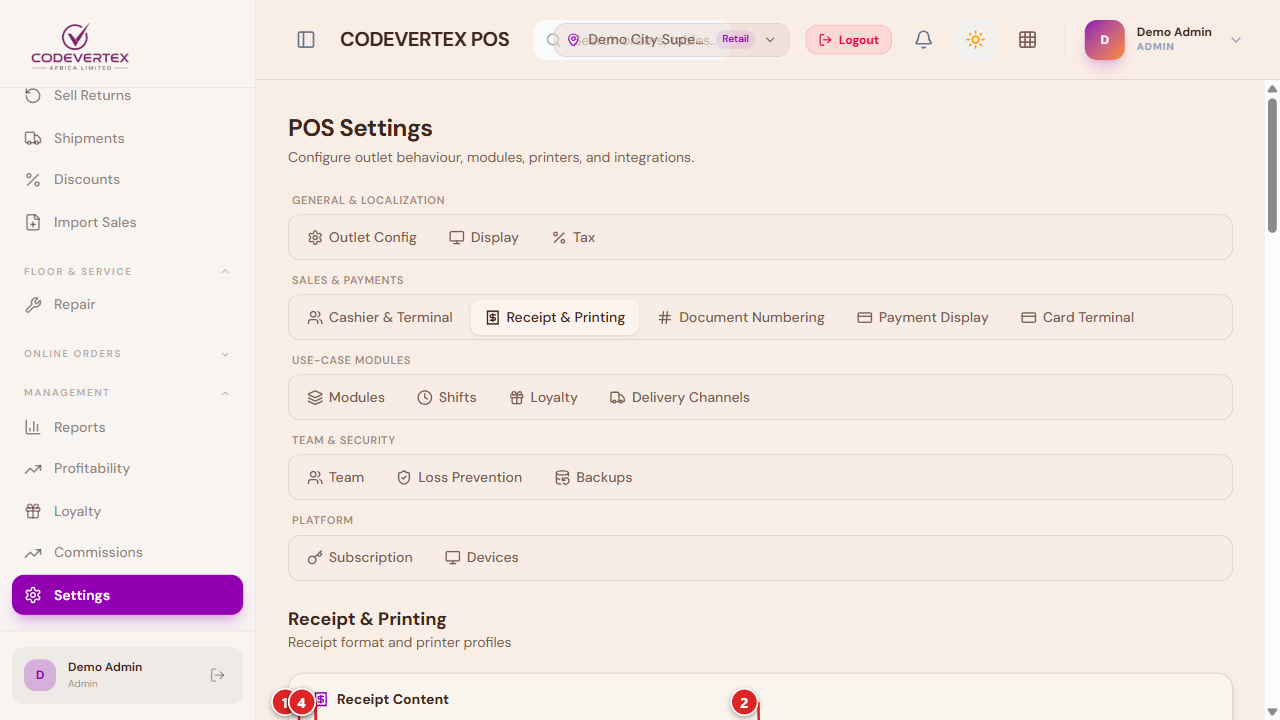
- Header Text — your business name, address, and any other line you want printed above the line items.
- Footer Text — a thank-you message or motto (for example, "IN GOD WE TRUST").
- Show Business Logo — prints your logo at the top of the receipt.
- Show Business Email — off by default; turn on to print your business email as well as whatever else your header already shows.
A matching Show Business Name on Receipt toggle sits alongside these.
Auto-print behaviour
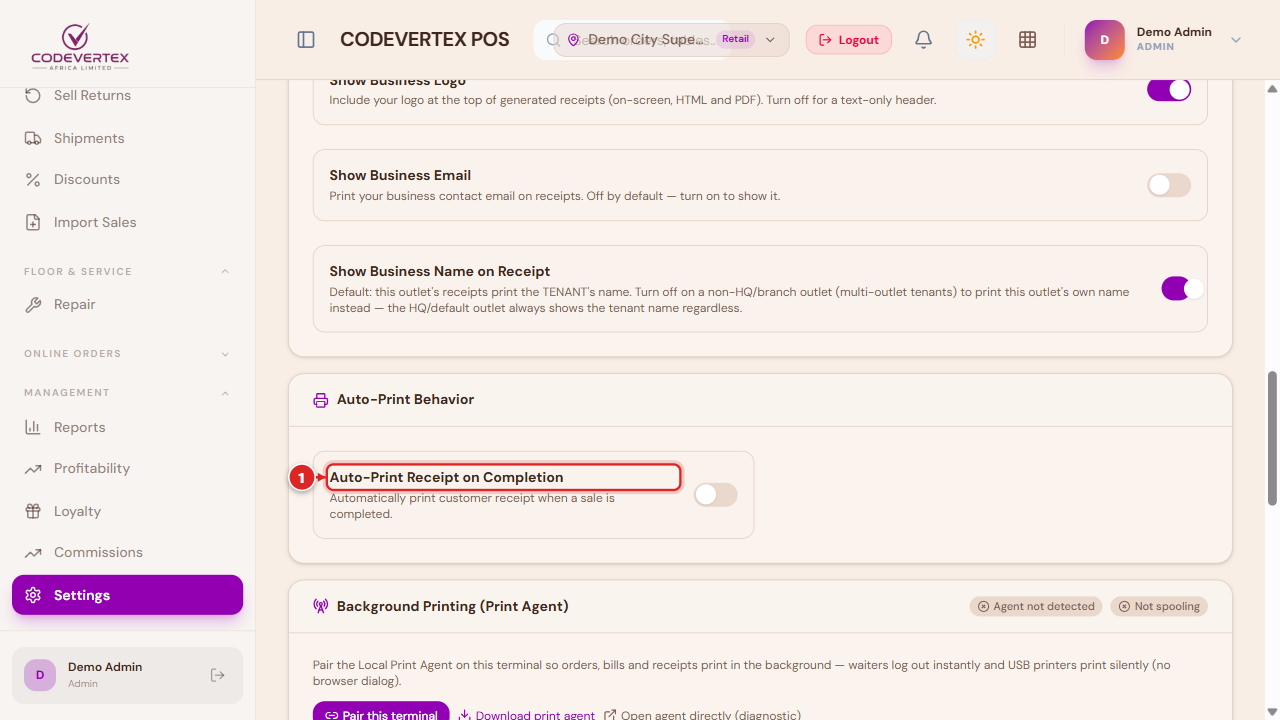
- Auto-Print Receipt on Completion — prints automatically the moment a sale finishes, with no extra tap needed.
- Auto-Print Station Tickets — for hospitality/quick-service, sends kitchen/bar dockets to their station printers automatically when an order is placed.
Printer profiles
Each till can have its own printer profile — a receipt printer, and (for hospitality/quick-service) one per kitchen/bar station:
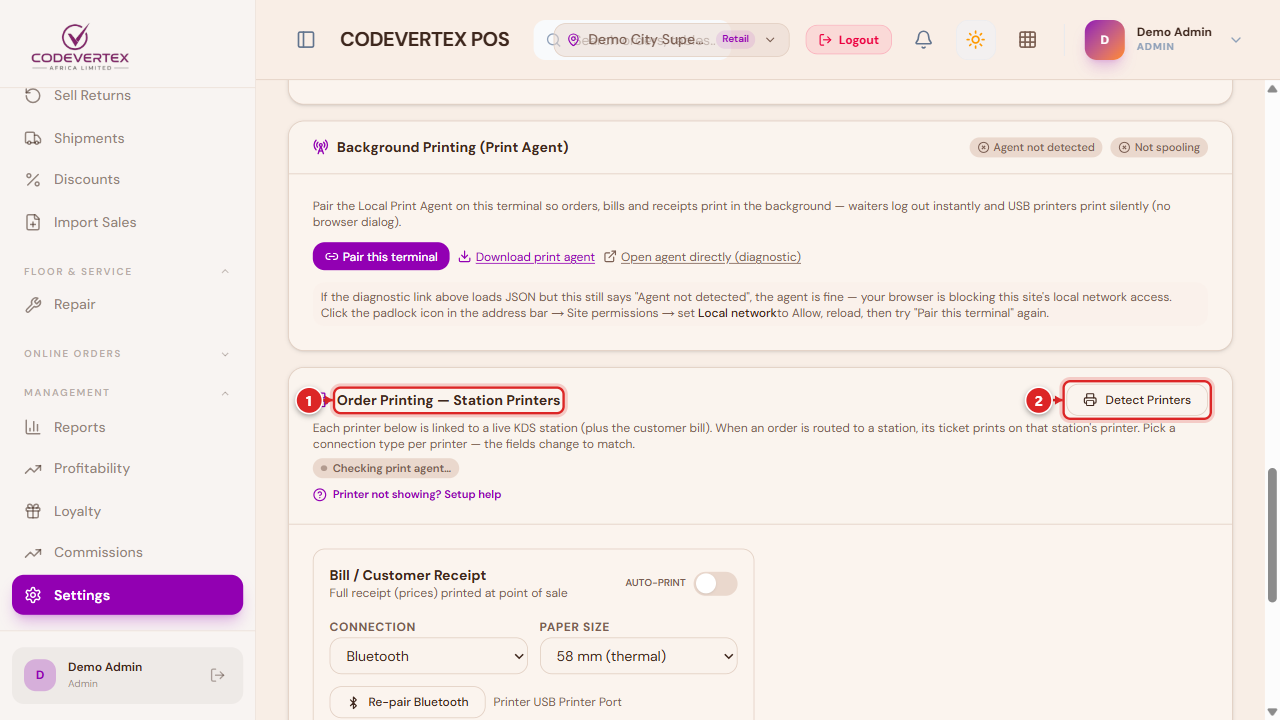
Detect Printers scans for printers your device can currently see — over the network, USB, or already installed in the operating system — and lists them for you to pick from, instead of typing a name or IP address by hand.
Each profile picks a Connection type, and the fields below it change accordingly:
- OS / QZ Tray — a printer already installed on this device (needs the free QZ Tray helper app running locally). Pick it from the detected list.
- Network (IP) — a thermal printer on your local network; enter its Printer IP and Port.
- USB / Bluetooth — Pair USB / Pair Bluetooth pairs directly from the browser (needs a user gesture — a real click — which is why this is a button, not automatic).
Test print on a profile sends a real test docket through exactly that profile's configured connection — the same path a real sale's receipt or kitchen ticket will use. Test it here after any change, before trusting it on the floor.
Background printing (the Print Agent)
For a shared till with no printer directly attached to the browser's device, install the Local Print Agent — a small background app that connects to your printers and prints jobs this device sends it, over your local network:
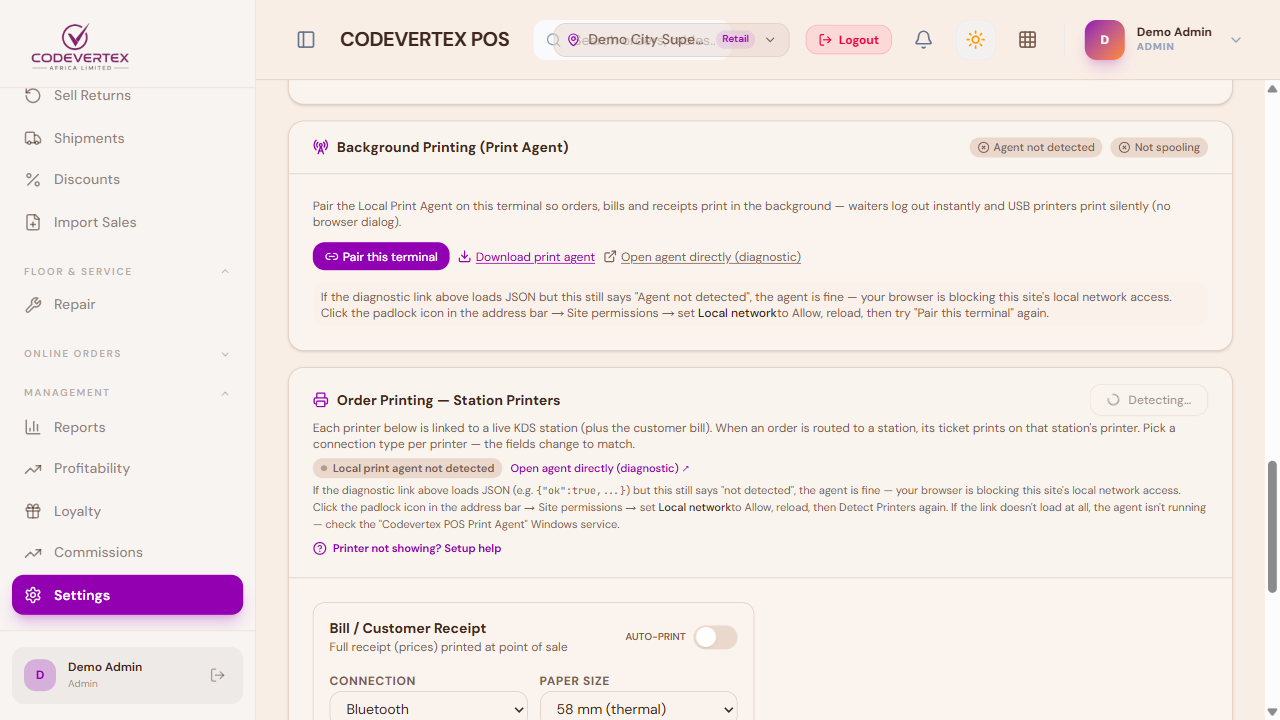
Pair this terminal links this browser session to a running agent. Once paired, the status here shows the agent's version and whether it's actively spooling jobs — useful for confirming a printer problem is on the agent/hardware side rather than the browser's.
If a print can't reach any configured printer or agent, the browser falls back to opening its own print dialog automatically, so a receipt is never simply lost — a cashier can still print (or save as PDF) through the browser itself.
Card Terminal
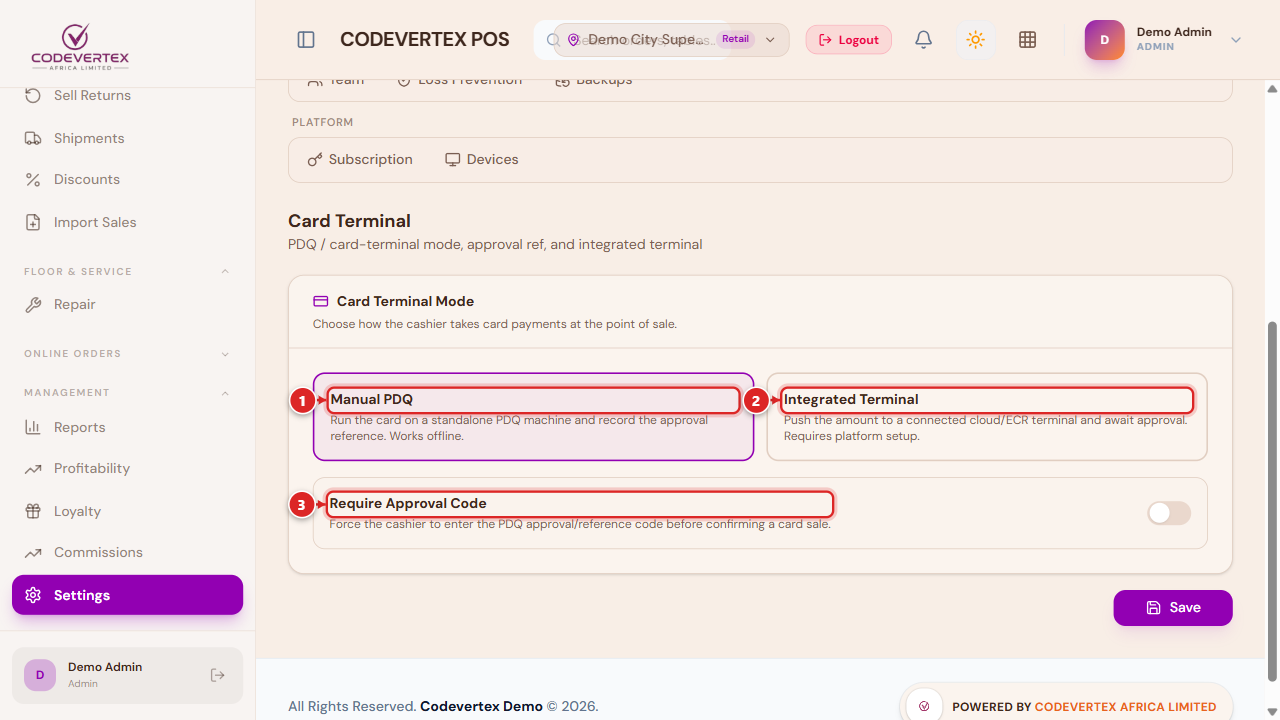
- Manual PDQ — a standalone card machine the cashier swipes independently; the till just records the reference afterward (this is the Card (PDQ) tender at checkout).
- Integrated Terminal — a supported payment-terminal provider connected directly, so card payments settle through the platform itself rather than a manual reference.
- Require Approval Code — asks for the card terminal's own printed approval code before the till accepts the payment as confirmed.
Devices
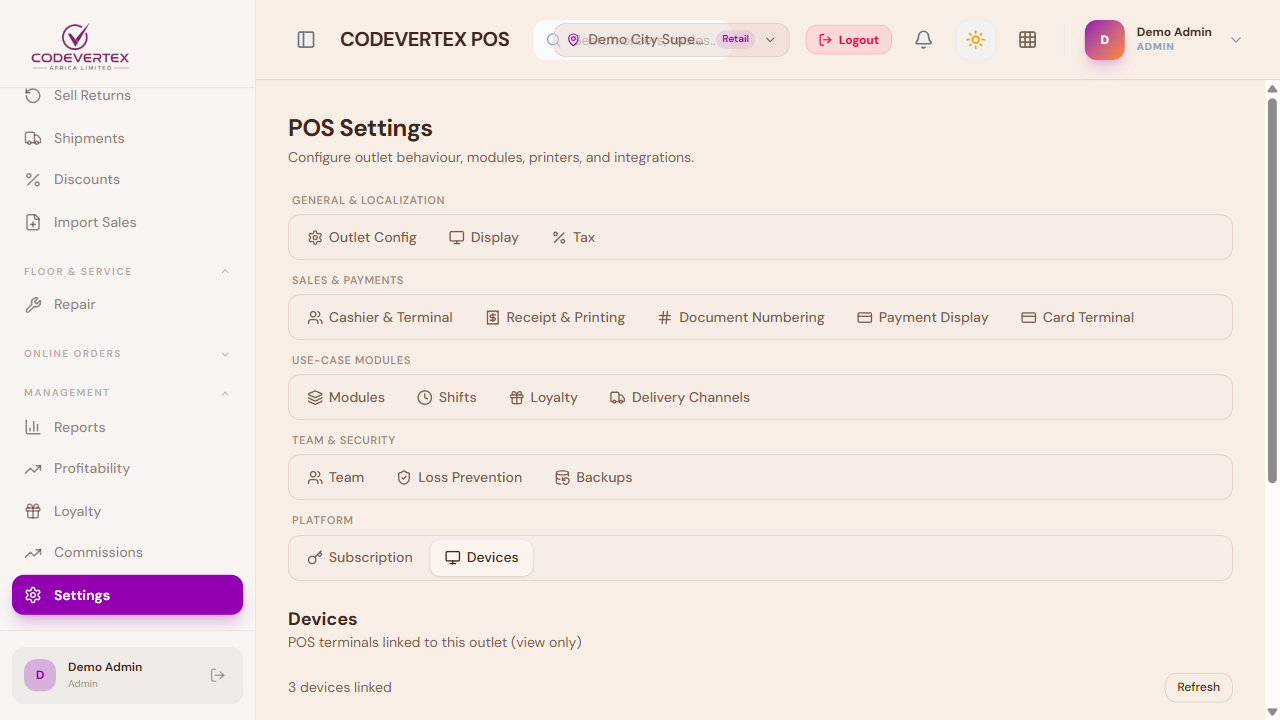
Devices lists the POS terminals already linked to this outlet — a read-only view (devices are provisioned automatically, not added here by hand):
Common Issues
Detect Printers finds nothing, or shows "agent not detected"/"Local print agent not detected." The app tells you exactly what to check:
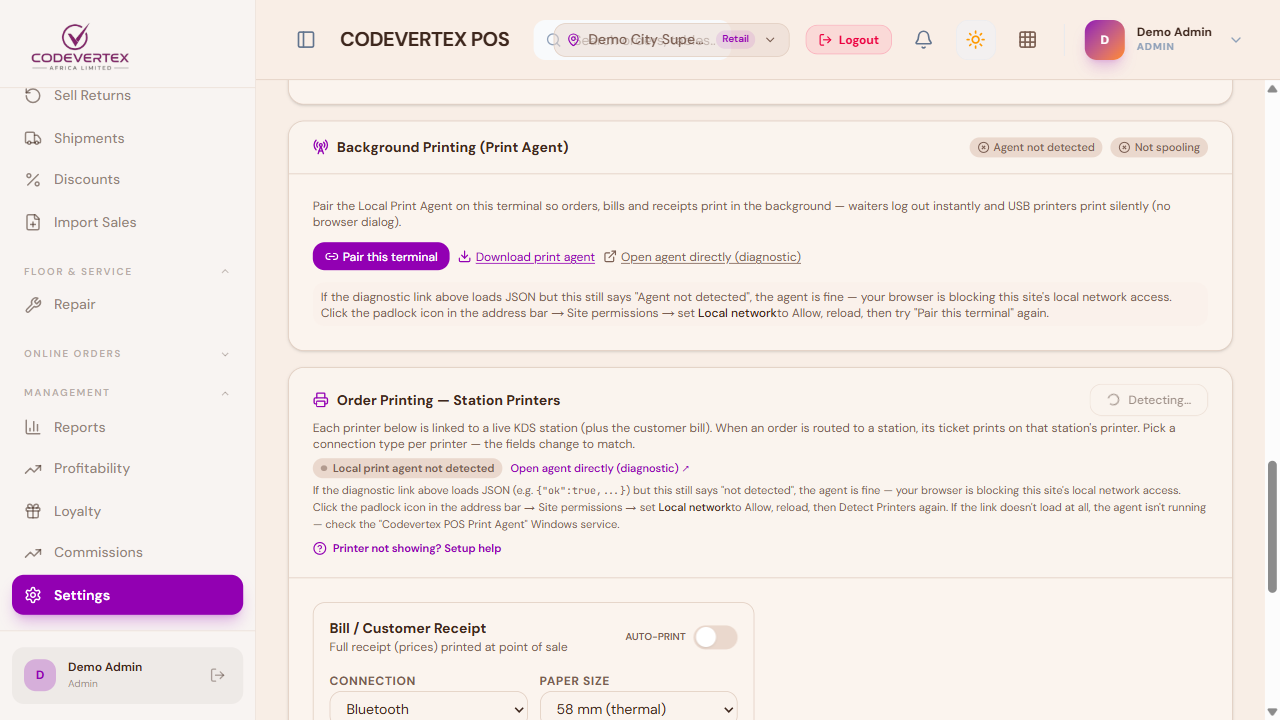
If the diagnostic link still says "not detected" even though it loads something, the agent itself is fine — your browser is blocking this site's access to your local network. Click the padlock icon in the address bar → Site permissions → set Local network to Allow, reload the page, then try Detect Printers (or Pair this terminal) again. If the diagnostic link doesn't load at all, the Print Agent isn't running — check the "Codevertex POS Print Agent" Windows service. For a network printer specifically, also confirm it's powered on and on the same network as this device.
Test Print works, but real sales don't print. Test Print always uses the profile's currently displayed settings, even if they haven't been saved yet — live sales use the last saved configuration. If you changed a printer's name or IP, click Save before relying on it, not just Test Print.
A receipt didn't print, and nothing obviously went wrong. The browser's own print dialog should have opened as a fallback — check for it (it can appear behind the main window). If it didn't, use the sale's own Print / Print Receipt action to try again; see Selling & Checkout.
Kitchen/bar tickets aren't printing, but the receipt printer works fine. These are separate printer profiles — confirm the specific station's profile (not just the receipt printer) is configured and has passed its own Test Print.