POS
A step-by-step guide to running the Point of Sale product day to day: selling and taking payment, manager approvals and overrides, receipts and printers, and everything a manager or admin configures to keep a till running smoothly. Every screenshot below comes from a working demo account, not mockups, so what you see here is what you'll see in your own organisation.
Staff Operations — day-to-day work
- Selling & Checkout — the POS Terminal from top to bottom: search and the cart, attaching or adding a customer (so their name shows on the receipt), every quick-action button (Recent Transactions, Sell Return, Register Details, Suspended Sales, Calculator, Add Expense), discounts, additional charges, multi-cart Sale tabs, drafts, returns, and every checkout tender. Covers the shared terminal every outlet type uses.
- Hospitality: Tables, Kitchen & Bills — everything specific to a restaurant, bar, cafe, or hotel-restaurant outlet: the floor plan, seating guests, Order Type and per-line courses/seats, sending an order to the kitchen or bar (KDS), managing an open table (merge, transfer, add another round), settling and splitting a bill, and reservations.
- Approvals & Manager Overrides — the three ways a manager authorizes a sensitive action (scan, PIN, or a one-time code), when approval is required, voiding a bill, editing or deleting a completed sale, and the Complimentary (no-charge) payment workflow.
- Receipts & Printing — what prints on a receipt, setting up a printer profile (network, USB, Bluetooth, or QZ Tray), the background Print Agent for a shared till, and the Card Terminal and linked-devices screens.
Administration — setup and management
- Settings & Configuration — outlet currency and discount limits, cashier price-edit policy, tax, document numbering, payment display, and feature modules.
- Team, Shifts & Cash Management — team members and PINs, the role permission matrix, shift handovers, the cash drawer, and setting up discounts and promotions.
- Reports & Dashboard — the role-aware dashboard and every report page (analytics, tax, profitability, shifts, returns).
- Payments & Treasury — how a sale becomes a payment record, credit sales and customer accounts, complimentary sales, refunds, and where to check what a customer really owes.
Finding your way around
On a computer, the sidebar is always visible on the left, grouped by topic (Operations, Sell, and more depending on your role) — the same navigation used throughout this guide:
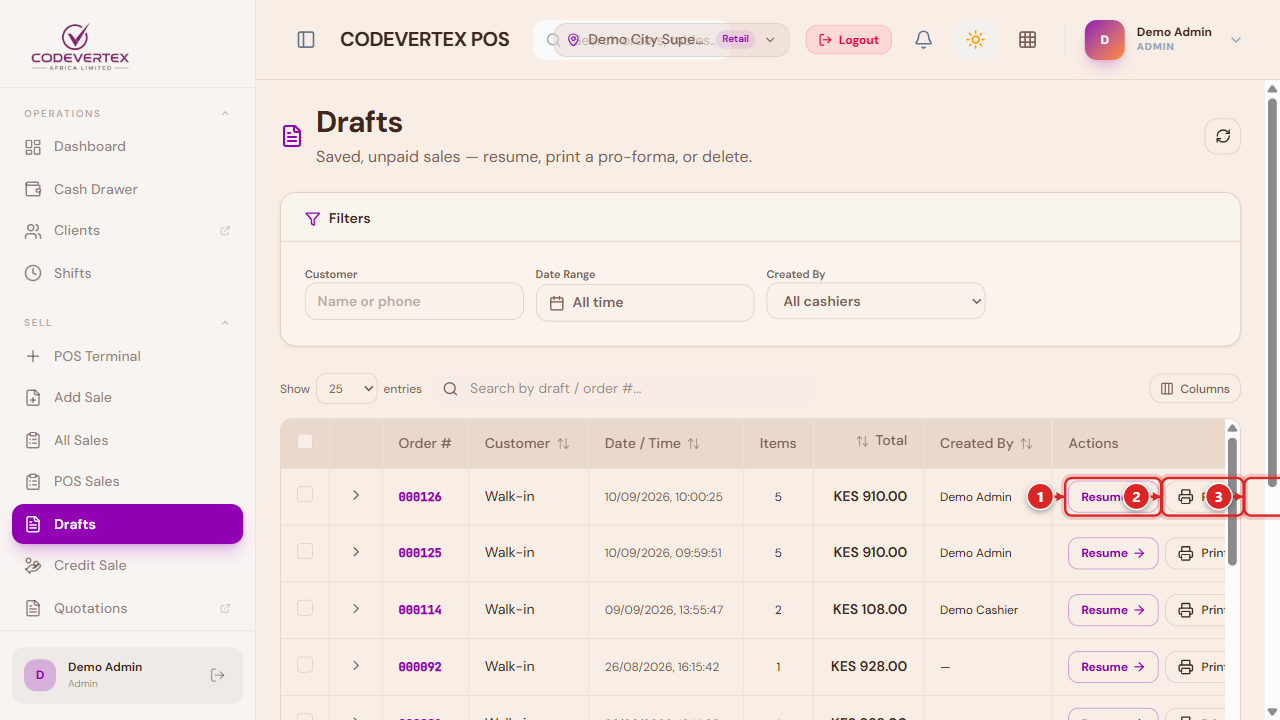
On a phone, the sidebar becomes a menu, opened from the hamburger icon in the header.
Before you start
You'll need an account with access to POS and a PIN set up by your administrator (Settings → Team, covered in Team, Shifts & Cash Management). If you manage more than one outlet, you'll pick which one you're working in when you log in — a manager or admin can switch outlets from the header's outlet chip without logging out.
Staff accounts, organisation-level roles, branches, and billing are managed separately in the centralized client portal — see Account & Organisation.