Hospitality: Tables, Kitchen & Bills
A restaurant, bar, cafe, or hotel-restaurant outlet uses the same terminal and cart covered in Selling & Checkout — search, discounts, additional charges, drafts, and every checkout tender all work the same way. What's different is everything upstream and downstream of the cart: seating a table, routing items to a kitchen or bar screen course by course, and settling a bill that may cover several rounds. This page covers that difference end to end. Every screenshot below comes from "Demo Grand Hotel & Restaurant," a working hospitality demo outlet, not mockups.
If your outlet takes counter orders only (no tables) — a quick-service or takeaway-style setup — most of this page won't apply; see Selling & Checkout instead.
Tables — the floor plan
Direct link:
https://pos.codevertexafrica.com/{your-tenant-slug}/tables
Tables (sidebar, under Floor & Service) is where a host or waiter sees the whole floor at a glance and starts or manages any table's order:
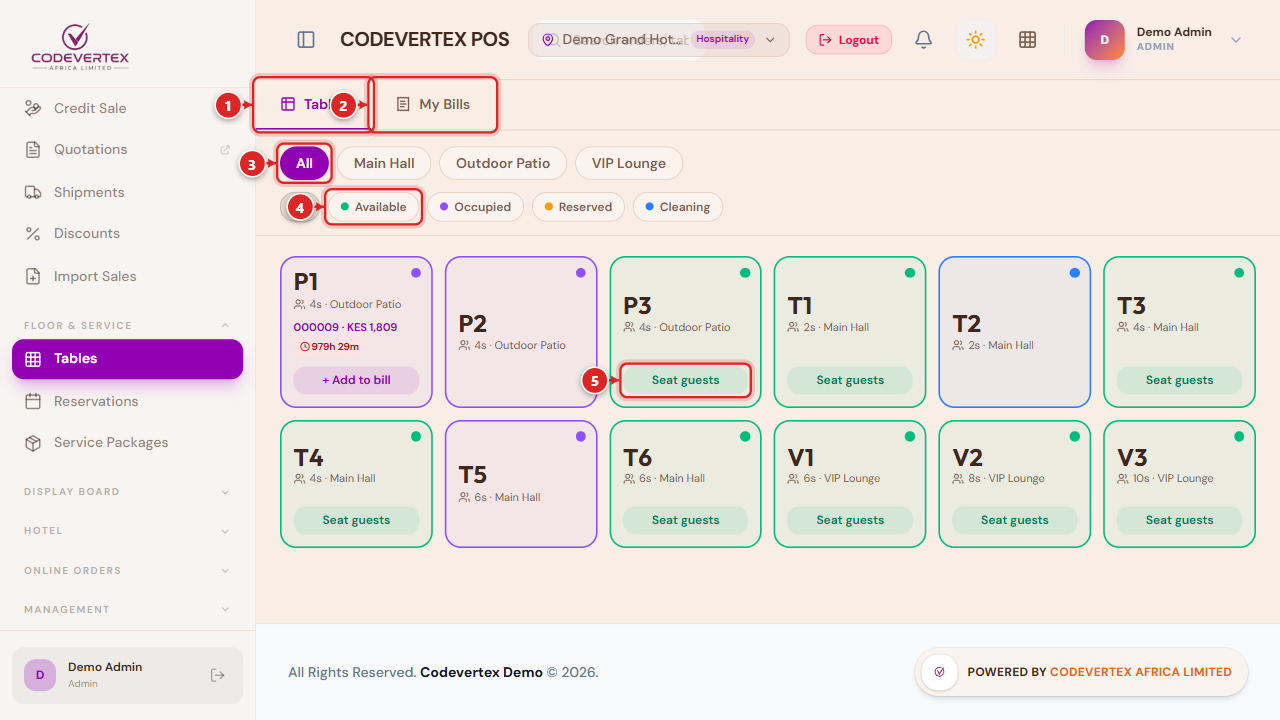
- Tables — this page.
- My Bills — the other tab, covered below.
- Section filter — narrows the grid to one physical area (e.g. Main Hall, Outdoor Patio, VIP Lounge) — set up under Settings → Tables.
- Status filter — Available (green), Occupied (violet), Reserved (amber), or Cleaning (blue).
- Seat guests — starts a new order at an available table (see below).
An occupied table's card shows its order number and running total, plus an aging badge once it's been open a while — the badge's color escalates the longer the table stays occupied past your outlet's configured threshold (Settings → Tables → Table Aging), a quick visual cue for a table that's been sitting far longer than a normal turn.
Seating guests and starting an order
Tapping Seat guests on an available table asks how many are being seated before anything else:
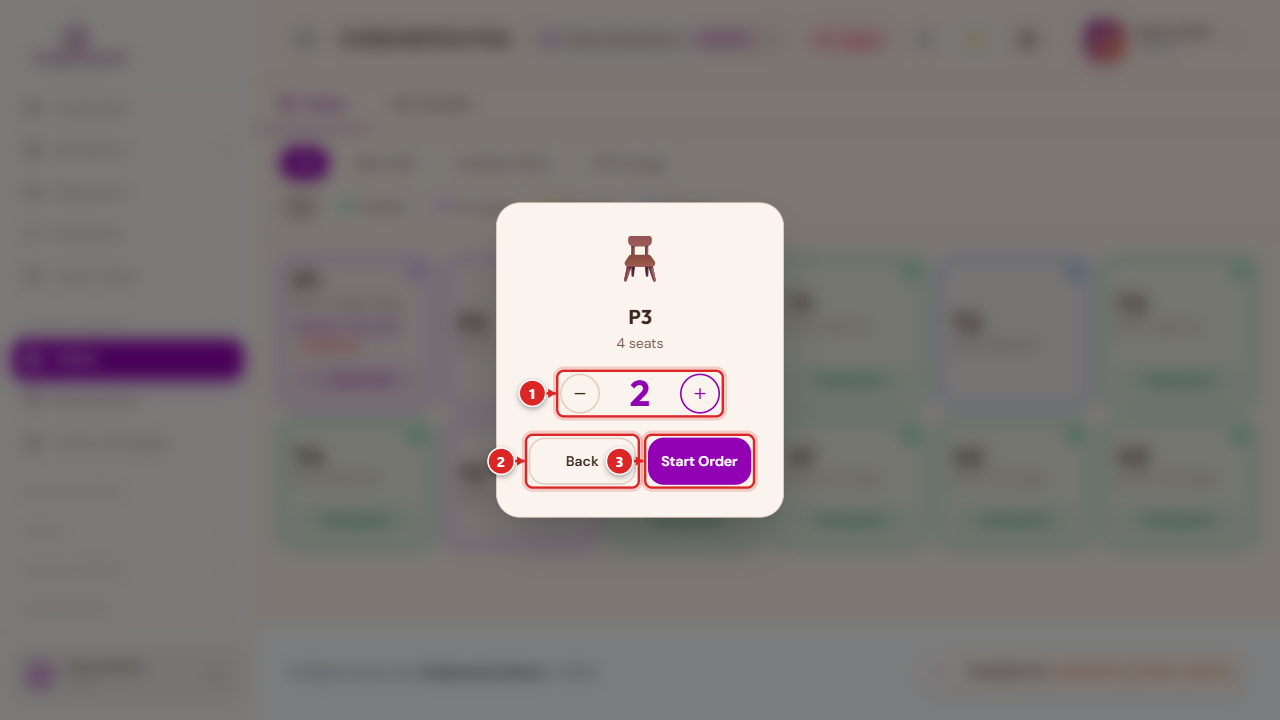
- − / + — adjust the guest count, capped at the table's own seat capacity.
- Back — cancels, no order started.
- Start Order — opens the terminal with this table already attached.
The terminal for a table order
Landing on the terminal from Seat Guests (or from + Add to bill on an already-occupied table) shows an Order Type row above the cart that a retail till doesn't have:
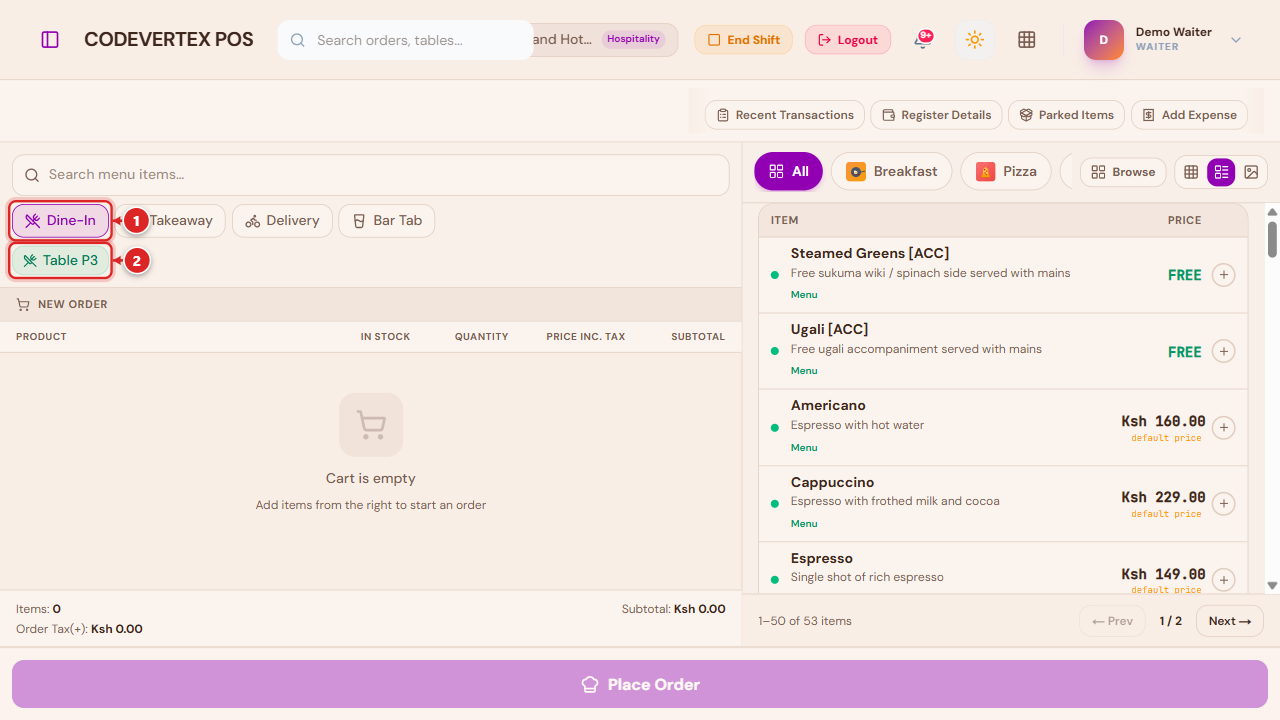
- Order Type — Dine-In, Takeaway, Delivery, and (where relevant) Room Service or Bar Tab; only the types that make sense for your outlet show up. Dine-In is selected by default when you arrive from Seat Guests.
- Table chip — the table this order is attached to, carried over from Seat Guests. Choosing Dine-In without a table attached offers a Select a table → link instead.
Everything else on this screen — search, the product grid, Browse, discounts, additional charges — works exactly as described in Selling & Checkout; it isn't repeated here.
Courses and seats
Once an item's on the order, two extra controls appear on its cart line:
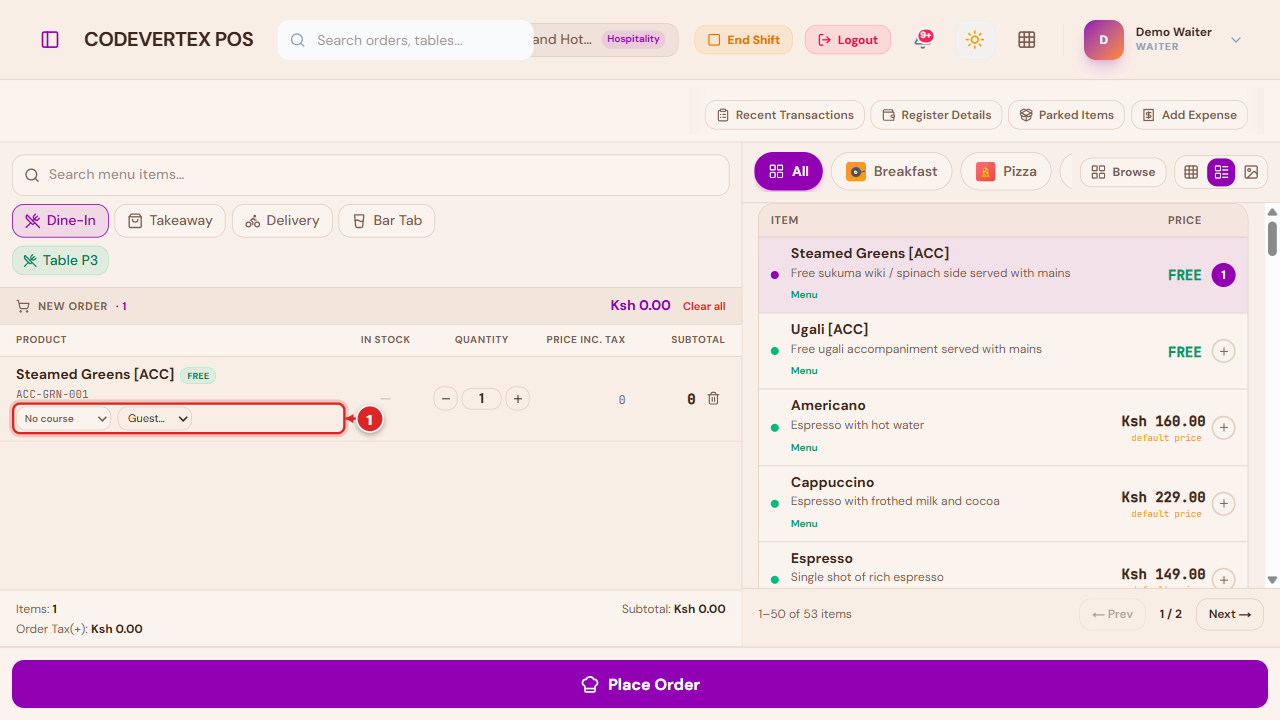
- Course (left) and Guest (right) — two small dropdowns on every cart line. Course — No course, Starter, Main, Dessert, or Bar. Leaving it as "No course" sends the item to the kitchen/bar immediately with everything else; assigning a course lets you hold it back and fire it later (see below). Guest — which seated guest this item belongs to. Tagging items by guest pre-fills Split Order later, so splitting the bill by person doesn't mean re-entering who ordered what.
Firing courses
Once a first round has already gone to the kitchen (from My Bills → Add to Bill, adding a second round to a table that's already open), any item with a course assigned beyond "No course" is held back from the kitchen display until you fire it — a Fire [Course] button appears in the totals footer for each course still waiting. This is what keeps a dessert off the grill before starters have even gone out. A brand-new order's first round always sends everything at once, regardless of course — there's nothing to fire yet.
Sending an order to the kitchen or bar
A dine-in order doesn't take payment when it's built — it's sent to be prepared first:
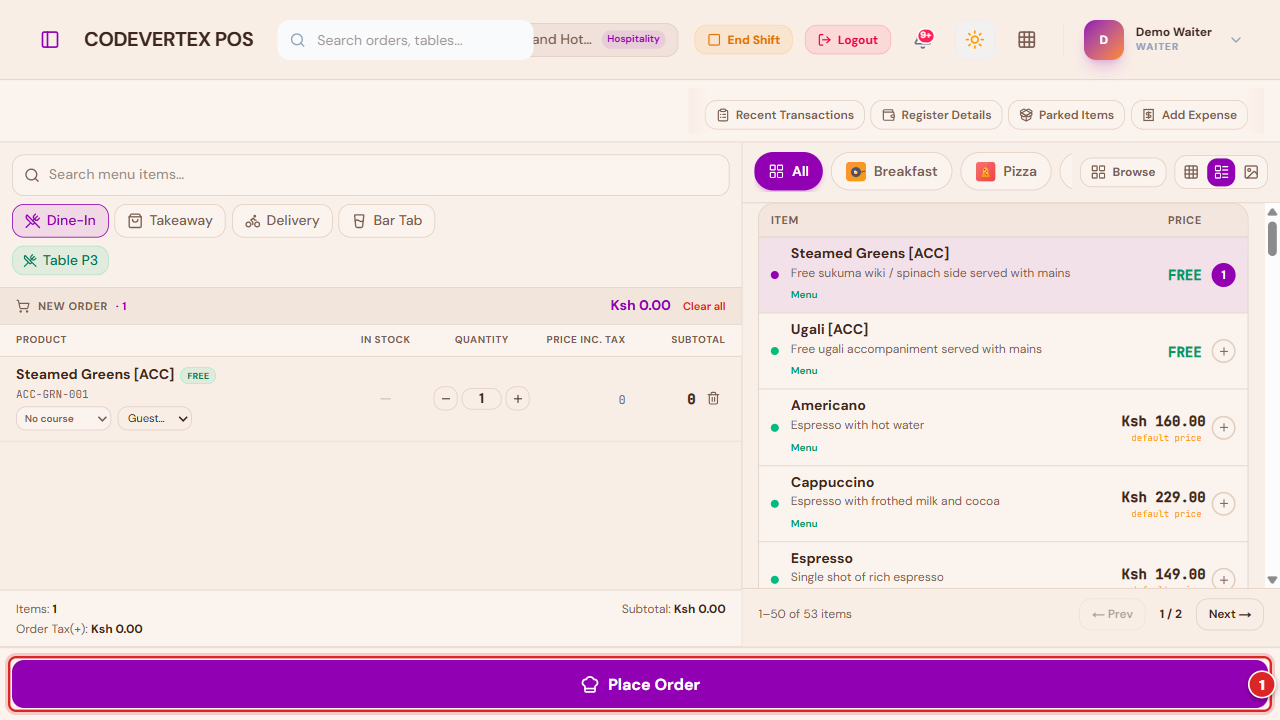
Place Order replaces the usual tender row for a fresh dine-in order. Tapping it routes each line to the kitchen/bar station(s) that handle its category (set up under Settings → KDS Stations) and marks the table occupied. The confirmation that follows shows which station(s) the order went to, offers Print Bill, and either signs you out (a shared till, ready for the next waiter) or leaves you signed in (a dedicated device) — whichever your outlet's policy is set to.
No money changes hands at this step. Settling the bill happens later, once the table is ready to pay — see My Bills below.
Managing an open table
Tapping an occupied (or available) table's name opens its action sheet:
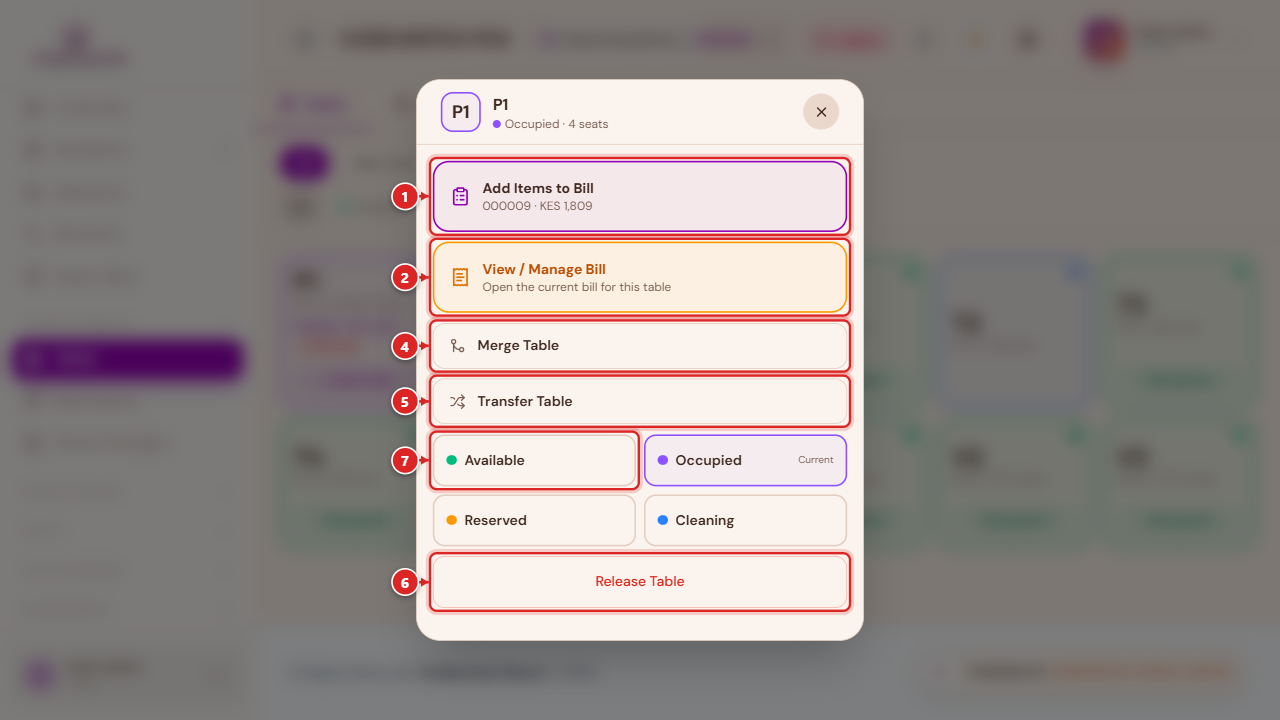
- Add Items to Bill — a second (or third) round on the same open order, going straight back
into the terminal with
+ Add to billbehavior (courses, seats, and Fire buttons all apply). - View / Manage Bill — opens the current bill for this table.
- Reserve Table (available tables only) — books it ahead; see Reservations.
- Merge Table — combines this table's order with another occupied table's, for a party that's spread across two tables.
- Transfer Table — moves this table's whole order to a different available table (an Unmerge Table option appears instead, for a table whose order came from a merge).
- Release Table — clears the table back to Available. Normally happens automatically once the bill is settled; this is the manual override.
- Status grid — set Available, Occupied, Reserved, or Cleaning directly, without going through Seat Guests or a payment.
Merge, Transfer, and status changes need table-management rights — a waiter typically manages only their own tables' day-to-day flow (seating, adding items, settling); see Team, Shifts & Cash Management.
My Bills
A table's tab, or My Bills on the Tables page.
A waiter's (or cashier's) own running list of bills — active, settled, and voided:
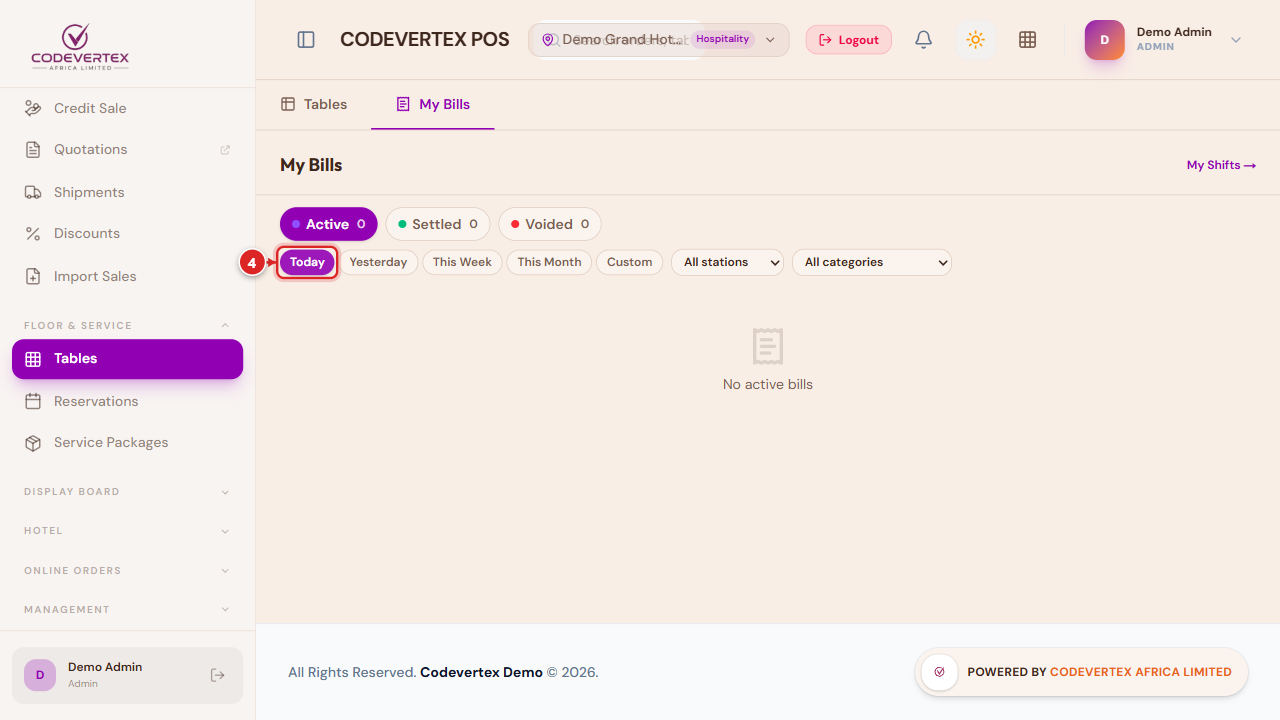
Active / Settled / Voided switch which bills you're looking at, and the period row below them — Today (highlighted, the default), Yesterday, This Week, This Month, or a custom range, alongside station and category filters — narrows it further. Each open bill offers Add to Bill (another round), Settle Bill (opens the same payment modal used everywhere else — see Selling & Checkout → Taking payment), Split Order (per-seat, pre-filled from each line's guest tag, or split evenly/by item), Print Receipt/Bill, and Void. Settling releases the table automatically.
Kitchen & Bar Display (KDS)
Direct link:
https://pos.codevertexafrica.com/{your-tenant-slug}/kds
Each station configured under Settings → KDS Stations (typically one per kitchen line, plus a bar station and an expo/all-stations view) gets its own ticket queue:
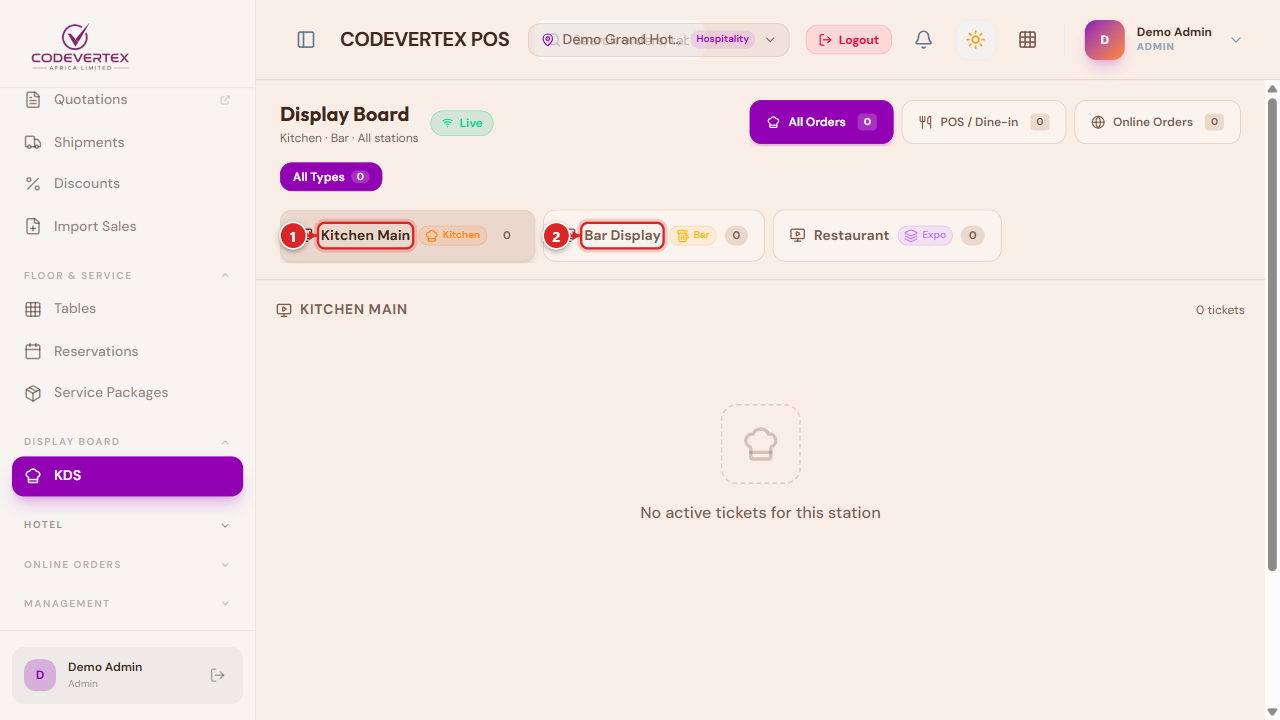
- Kitchen Main — the kitchen line's own queue, filtered to food categories.
- Bar Display — the bar's own queue, filtered to drink categories. Any other configured station (e.g. a combined Restaurant/expo view that sees everything) appears as a further tab.
Below the station tabs, one row of order-type chips narrows the station's queue: All, Dine-in, Takeaway, Online pickup, Delivery, Online delivery, Room service and Bar tab (only the types with tickets appear). The number on each chip is exactly the number of tickets that chip shows at the station you are viewing, and the number on each station tab follows the order type you picked. Finished tickets are never counted. Each ticket shows its order type, where it goes (table, room, or the online channel with any promised time) and, for takeaway, delivery and online orders, the customer's name to call out.
A ticket moves Start → Ready → Served as kitchen/bar staff work through it, with a running timer that changes color the longer a ticket sits unstarted or unfinished — a quick visual cue for what's falling behind. An admin/manager tool on this page can mark every active ticket served at once, for a station with no device to bump tickets individually or to clear stale ones.
Reservations
Direct link:
https://pos.codevertexafrica.com/{your-tenant-slug}/reservations
Book a table ahead of time for a guest who hasn't arrived yet:
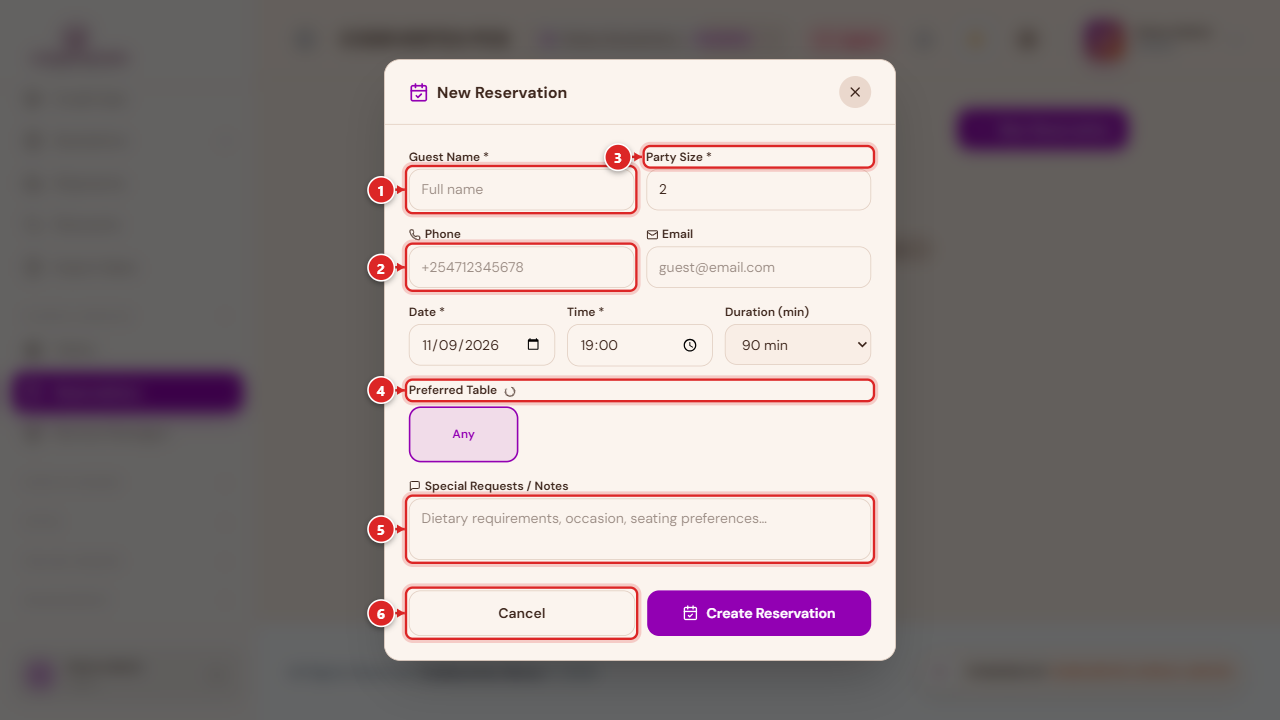
- Guest Name — required.
- Phone — used to reach the guest to confirm; email is also available but optional.
- Party Size — how many guests.
- Preferred Table — pick a specific table, or leave it as Any.
- Special Requests / Notes — dietary needs, an occasion, a seating preference.
- Cancel / Create Reservation.
A reservation moves from Pending to Confirmed, then Checked-in once the guest actually arrives and is seated (or Cancelled / No-show if plans changed).
The dine-in order lifecycle
flowchart LR
    A[Seat guests] --> B[Build the order —\ncourses + seats]
    B --> C[Place Order —\nsent to kitchen/bar]
    C --> D[KDS: Start → Ready → Served]
    D --> E{More rounds?}
    E -- Add to Bill --> B
    E -- No --> F[Settle Bill]
    F --> G[Table released]
Roles for a hospitality outlet
A hospitality outlet typically has more specialized roles than a retail till: Waiter (seats guests, builds and settles their own tables' bills), Kitchen Staff and Bar Staff (KDS access only, scoped to their own station), and Receptionist (front-of-house and, where the Hotel module is enabled, room-service orders). A trusted waiter can also be granted every other waiter's tables (sometimes called a "floor supervisor") via Extra roles rather than becoming a full manager. See Team, Shifts & Cash Management → Roles & Permissions for the full matrix.
Common Issues
The terminal still shows the retail layout after I switched outlets from the header. The terminal picks up your outlet's mode when you sign in. If you switch outlets mid-session from the header's outlet chip, sign out and back in (or start a fresh PIN session) so the terminal re-reads the new outlet's settings.
Add Items to Bill doesn't show Fire Courses even though I assigned courses. Fire buttons only appear once a first round is already with the kitchen — assign courses on the FIRST round and they're sent all together immediately; the course only matters for holding back a LATER round added via Add to Bill.
Merge Table / Transfer Table / Release Table aren't in a table's action sheet. These need table-management rights, not just table-view — see Roles for a hospitality outlet above.
A table's aging badge is red. It's been occupied longer than your outlet's configured threshold (Settings → Tables → Table Aging) — a prompt to check on the table, not an error.
Room charges, credit sales to a guest's account, and complimentary rounds work the same way here as everywhere else in POS — see Payments & Treasury and Approvals & Manager Overrides.